
Oracle WMS contains a powerful rule engine, which enables the end users to create complex picking rules for their inventory.
Following test shows how to configure a FIFO picking rule for lot-controlled Item
Test Case 1 tests the FIFO picking rule
Test Case 2 tests the LIFO picking rule, to compare the different result of these 2 test cases
Following are the detail steps and screenshots
- Create a new lot controlled SKU ZLOT100 for the test
- Use WMS mobile to Misc Receive 2 lots into 2 LPN to the same location, each with 10 qty
- Create a FIFO picking rule
- Configure the rule in the Rules Workbench
- Release the Sales Order and create the Picking Task
- Use ‘Accept Any Task’ to Accept the Task and check the system suggested picking LPN
- Cancel the task when we get the suggested LPN for the 1st SO, also cancel SO to avoid confusion
- Change the Picking rule to LIFO
- Create another same Order and release
- Accept the new task and see the suggested LPN
Detail Steps and screenshots are as following
- Create a new Item ZLOT100 with lot control

- Misc Receive 2 Lots, each with 10 quantity to 2 LPN
LPN105A and LPN107A

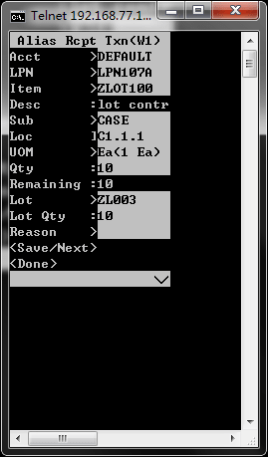
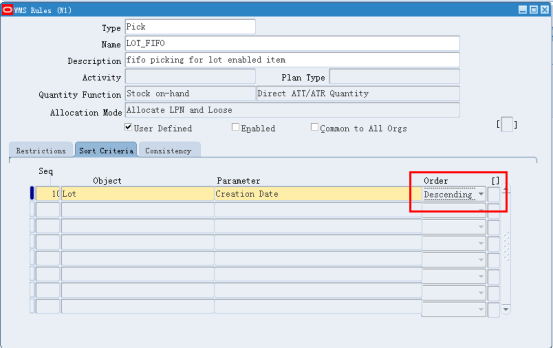
- Create a Picking Rule
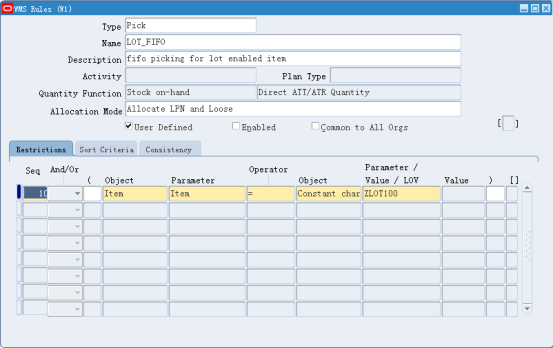
- Following tab is the key, setup the ‘Sort Criteria’ using the Lot Creation Date
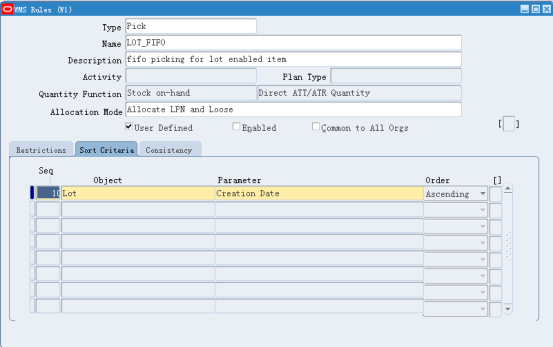
- In Rules Workbench, assign the new Picking Rule to the Item

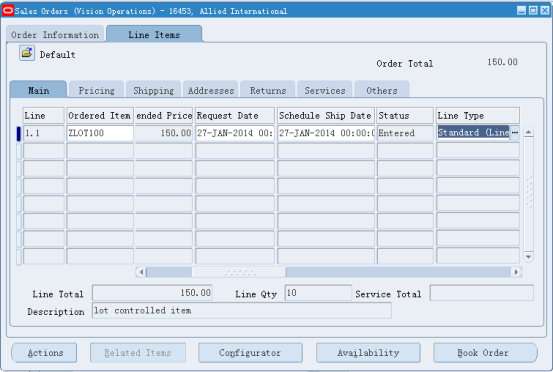
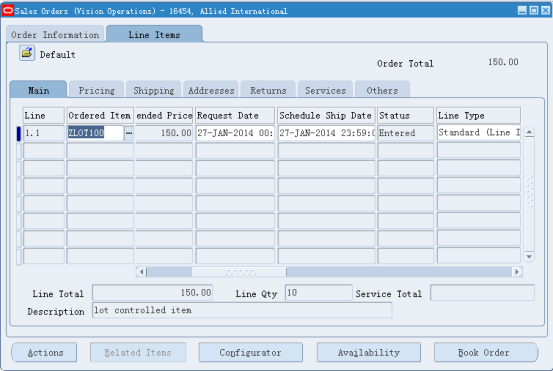
- Create a Sales Order and release it
- Login as user ‘rbeezly’ and ‘Accept Any Task’
In the Mobile page, system suggest to pick from LPN105A, this is in line with FIFO rule

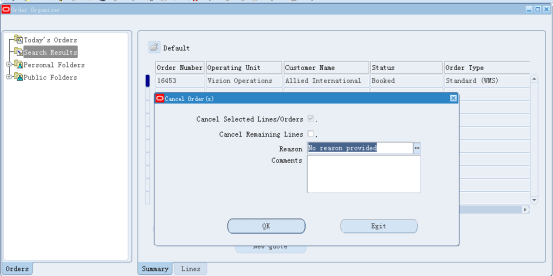
- Now cancel the task and the SO, this will put the pending LPN back to stock
- Change the Same Picking Rule, change its sorting to ‘Descending’, this will make it a LIFO rule
- Create another same Sales Order and Release it
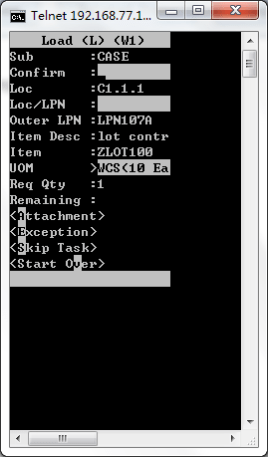
- Use the same User and ‘Accept any tasks’
This time system suggest to pick from LPN107A instead of LPN105A, this is in line with LIFO and different from the FIFO test earlier
 Zhi Yan Blog