How can Java run Groovy script dynamically 2

This is a continue with the previous blog “How can Java run Groovy script dynamically”.

We try to do some complex things inside the groovy script, this time we tried to define a data structure directly inside the script, and see if the GroovyShell can identify it at run time and run correctly

Following are the sample script that passed to the GroovyShell

The code refers to “How to use a Groovy trait to output any class as csv?”

import java.io.ByteArrayInputStream
import java.io.Reader
import java.io.InputStreamReader
import static com.xlson.groovycsv.CsvParser.parseCsv

def sb = StringBuilder.newInstance()

/*
// TEST1 - simple CSV parsing
Reader inputReader = new InputStreamReader(new ByteArrayInputStream(input));
for(line in parseCsv(inputReader,separator:",")){
  // println line
  sb.append(line.attribute1+";"+line.attribute2)
  sb.append("\n")

}

output = sb.toString().getBytes()
*/

// TEST2 - Define data structure inside the dynamic script and gets output
def m = new MeetupMember()
m.name = "Sergio del Amo"
m.locality = "Guadalajara"
m.twitter = "https://twitter.com/sdelamo"
m.facebook = null
m.tumblr = null
m.imageUrl = "http://photos4.meetupstatic.com/photos/member/c/d/6/b/member_254392587.jpeg"
m.website = "http://www.meetup.com/es-ES/Warsaw-Groovy-User-Group/members/200767921/"

output = m.asCSV().getBytes()

// Following are the data structure definition
// You can see that this part is at the end of the script
// But GroovyShell handle it correctly
trait TraitAsCSV {
// manually provide the header to make sure the csv output is in the expected sequence
   List<String> propertyNames() {
        return ["name","locality","twitter","facebook","tumblr","background","imageUrl","website"]
    }

    String csvHeaders() {
        propertyNames().join(delimiter())
    }

    String asCSV() {
        def str = ""
        def arr = []
        for(def propName in propertyNames()) {
            def v = this."$propName"
            arr <<  (v ?: "")
        }
        arr.join(delimiter())
    }

    static String delimiter() {
     ";"
    }
}
class MeetupMember implements TraitAsCSV {
    String name
    String locality
    String twitter
    String facebook
    String tumblr
    String background
    String imageUrl
    String website
}

How to download a file by Code in VBCS?

Following the previous blog of uploading file to VBCS, this time, we handle the download issue.

We can fetch file contents from external web service – etc, fetch a pdf binary string from DB or other report services, or manually construct a csv file content, and put to a VBCS page variable.

OK, and then, how can we download the file from the variable to local PC?

You can add the following function code to page function of VBCS, and hook it up in action chain, pass in the variable with file content, it will directly download the file in your browser.

Please remember to change the file type to the one you required, following code is generating a pdf file

Cheers!

// following is downloading a pdf,
// you can download other files, you just need to change the file type
PageModule.prototype.downloadFile = function(fileBytes){
var blob = new Blob([fileBytes],{type:'application/x-pdf'});
var filename = "test.pdf";

if(navigator.msSaveBlob){ // IE 10+
  navigator.msSaveBlob(blob,filename);
} else {
  var link = document.createElement("a");
  if(link.download !== undefined){ // feature detection
	// Browsers that support HTML5 download attribute
	var url = URL.createObjectURL(blob);
	link.setAttribute("href",url);
	link.setAttribute("download",filename);
	link.style.visibility='hidden';
	document.body.appendChild(link);
	link.click();
	document.body.removeChild(link);
  }
}

};

How to upload a file in VBCS

Oracle VBCS is a great tool that increase your productivity.

However, it has its constraints, since it’s contained within Oracle controlled environment, you don’t get all the component handler as you do when using JET.

Luckily, we do find tricks to go around the blocks when referring back to JET.

File upload function is a requirement for most applications, end users will get a plain text file from external systems or manually create them, and want to import it into the application directly through web UI.

But VBCS do not provide the option for importing files.

Following is how we can solve this issue.

First, we import the component “oj-file-picker” to the page configuration

"oj-file-picker": {
"path": "ojs/ojfilepicker"
}

Second, we add a file picker in the page and add a select listener to it through UI

<oj-file-picker id=”oj-file-picker–0001″ selection-mode=”single” on-oj-select=”[[$listeners.ojFilePicker0001OjSelect]]”></oj-file-picker>

Finally, and the most important part, we add following code to the system customize function, and hook it with the action chain created for the file picker select event

PageModule.prototype.selectListener = function (detail) {
var fileContent = PageModule.prototype.promiseUploadFile(detail).then(function(readerResult){
  console.log('filecontent in promise',readerResult);
  return readerResult;
  },function(){
	});    

  console.log('filecontent outside promise',fileContent);

  return fileContent;
};

PageModule.prototype.promiseUploadFile = function (detail){
return new Promise(function(resolve, reject){
  var files = detail.files;
  var file = files[0];
  var reader = new FileReader();
  reader.addEventListener("loadend",function(){
	resolve(reader.result);
  });

  reader.readAsText(file);
});
};

This way, we can get the select output from the function.

The function itself uses Promise, that’s why it contains 2 parts. When calling from action chain, you need to use function “selectListener” to get the selected file return.

Spring boot + Camel hello world

This post shows how to create a helloworld by using Spring boot and Camel from scratch. It covers following 2 examples:
1. Create a Camel route to pring a “hello world” message
2. Create a Camel route to move files from folder1 to folder2

Spring boot is an easy way to create an app. Its Dependency Injection makes it especially easy to create Camel Routes.

Following are the overall steps that we need to go through for this – we use Gradle to compile in this example.
1. Goto Spring Initializr to create a Spring project with Gradle, Java, Camel option.
2. Add Camel Main run controller setting property and test
3. Create a new HelloWorld Route for the printing of “hello world” message and test
4. Create a new route to move files from folder1 to folder2 and test

Following are the key steps related:
1. Create a Spring Project using Spring Initializr:
We go to the web site and select following options to create and press “Generate Project”.
The Spring Initializr will download the project with the Camel dependency for us as a Zip
Download the zip file and unzip it locally to your PC
CreateSpringCamelProject

2. We now add a Camel Main controller setting to file “HelloCamel\src\main\resources\application.properties”, this will keep the Camel Main thread running rather than exit immediately.
# camel main loop setup
camel.springboot.main-run-controller=true

You can go to folder HelloWorld and try to run “gradle bootRun” after the setting, it should show following output, this means the camel started correctly – you can use “ctrl+c” to cancel the running afterward.
TestRun

3. We now create a HelloWorld Route to print some hello world output. Add a new folder “route” under folder “HelloCamel\src\main\java\com\zzyan\HelloCamel”, and then add a new file “Route1_HelloWorld.java” inside it.
Please note the @Component command, this tells Spring Boot it’s a spring managed bean, spring will initialize it at run time.
Paste following codes to the file and try to run it with “gradle bootRun”

import org.apache.camel.builder.RouteBuilder;
import org.apache.camel.Processor;
import org.apache.camel.Exchange;
import org.springframework.stereotype.Component;
@Component
class Route1_HelloWorld extends RouteBuilder{
@Override
public void configure() throws Exception{
from("timer://jdkTimer?period=3000")
.to("log://camelLogger?level=INFO")
.log("Hello World");
}
}

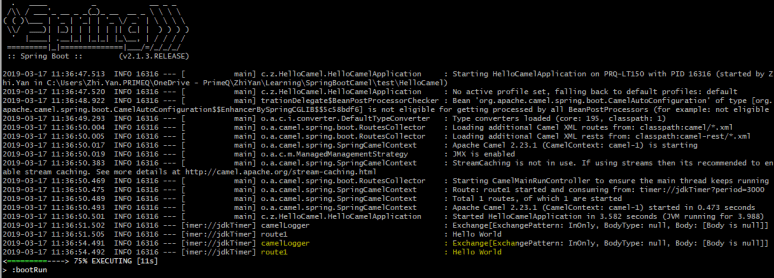
It should show following info, the Hello World message is print out correctly
HelloWorld

4. We try to add another route to the project, moves files from folder1 to folder2. Add a new file “Route2_FileTransfer.java” with following codes, PLEASE change the 2 folder names to your own.

package com.zzyan.HelloCamel.route;
import org.springframework.boot.SpringApplication;
import org.springframework.boot.autoconfigure.SpringBootApplication;
import org.apache.camel.builder.RouteBuilder;
import org.apache.camel.Processor;
import org.apache.camel.Exchange;
import org.springframework.stereotype.Component;
@Component
class Route2_FileTransfer extends RouteBuilder{
@Override
public void configure() throws Exception{
from("file:C:/camel_test1?noop=true").to("file:C:/camel_test2");
}
}


put a file in folder1, in my case it’s c:/camel_test1
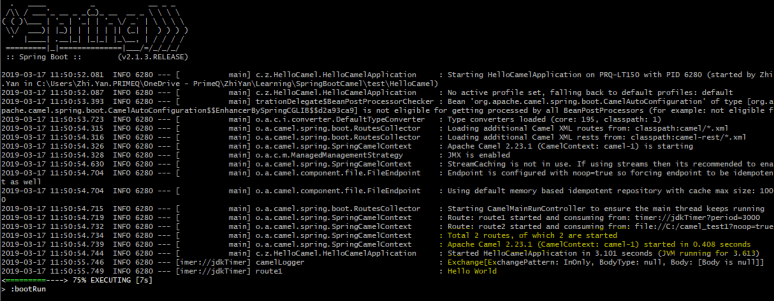
run the project by “gradle bootRun”, and it should show both Routes are running.
it shows 2 routes are running now
FileTransfer

check the folder2 folder in your own PC, it should copy all the files from folder1 to folder2:

CopiedFile

If both tests work fine, congratulation, you have successfully used Spring boot and Camel to create 2 Routes.

You can continue to create more Routes with specific requirements – transform files, unmarshal csv etc, with the help of Camel, this would be straightforward.

You can also containerize the project to deploy it as a microservice to a cloud platform, which will be covered later in the blog.