
Following are the steps that consolidates multiple blogs on line, and to serve the purpose of installing .net Core and MySql using an Oracle Always Free Ubuntu – for testing.
1, How to Create-an-always-free-compute-vm-on-the-oracle-cloud
Please note,
a) When you choose the VM type, choose Ubuntu instead of Oracle Linux.
b) Download the ssh keys
c) Use and public IP when it asks, then you can use ssh to connect to the instance using Putty
2, How to Install MySql in Ubuntu
a) When create an normal user that can access from any IP(if you want), also grant privileges to the user
use CREATE USER ‘youruser’@’%’ IDENTIFIED BY ‘password’;
grant create, alter, drop, insert, update, delete, select, references, reload on *.* to ‘youruser’@’%’;
3, How to Install .net core on Linux
a) Since I’m using ubuntu, and ubuntu has apt, I referred to Install the .NET SDK or the .NET Runtime on Ubuntu
b) Please also note that the installation has different command for ubuntu versions, find the correct version you need
Test the installation – use following commands to create a test, it should output “Hello World!” on your screen
mkdir HelloWorld
cd HelloWorld
dotnet new console
dotnet run
Test the .net core mvc in Linux
Check This Blog out to know how to allow .net core mvc to have external access
mkdir HelloWorldMvc
cd HelloWorldMvc
dotnet new mvc
dotnet run –urls http://0.0.0.0:5000
Use curl to do a test to see if it returns the correct output
curl localhost:5000
It should show something like following:
4, Setup nginx and do a reverse proxy to visit the mvc project
For the setup of Nginx itself, I used the Ubuntu Tutorial Install and configure Nginx
sudo apt update
sudo apt install nginx
Use curl to test if it returns the nginx main page
curl localhost:80
———————————————————————
Install nginx failed, not able to connect through external network, not sure why, changed to use Apache instead
Seems the 80 port connection issue relates with Oracle Always Free VM setting mentioned in this blog
After running following 2 commands, I was able to connect to the 80 port
sudo iptables -I INPUT 6 -m state –state NEW -p tcp –dport 80 -j ACCEPT
sudo netfilter-persistent save
After the setup, Apache2 is on port 80, and Nginx is on port 8081
———————————————————————
5, Refer to Install and config Apache
6, Use the Microsoft tutorial Host ASP.NET Core on Linux with Nginx
After the reverse proxy configuration setup in Nginx, when visiting the 8081 port, it auto forward to the 5000 port which is the .net core mvc application as following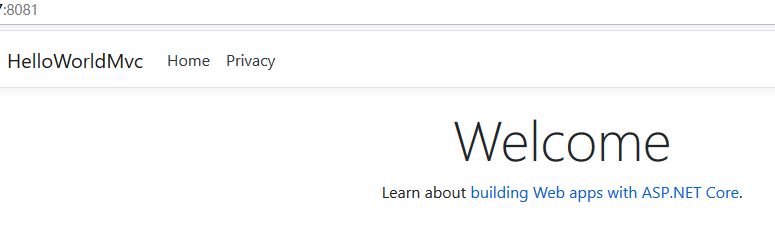
 Zhi Yan Blog