How to use WSO2 to expose DB table CRUD as Rest API

Rest API is every where now adays and it simplifies the integration between systems.

But when you only have a Relational Database, and you want to expose your DB CRUD operations to Rest API, most of the time, you will need to do some programming.

For small projects or companies that do not have enough resources, it would be hard to develop a program to do that.

Is there an easier way to do that?

The answer is yes, this demos shows how to use WSO2 to do this, WSO2 is an open source platform, it has a web admin UI and a eclipse based integration studio tool.
The version I’m using is WSO2 6.6, you can download using the link.
Please also refer to the Integration Corner’s youtube channel with detail on how to use WSO2

After download, simply unzip the file, go to /bin folder and use integrator.bat or integrator.sh t start WSO2.
You should be able to visit https://localhost:9443/carbon using admin/admin

In this demo we uses Mysql to do the test.
Simply refer to most-popular-mysql-commands to get the sql we need in this demo

Following SQL are executed in the DB to create the test table and sample data
CREATE TABLE people(id INT PRIMARY KEY AUTO_INCREMENT,name VARCHAR(255),age INT);
INSERT INTO people (name, age) VALUES (‘John’, 24), (‘Jane’, 22);

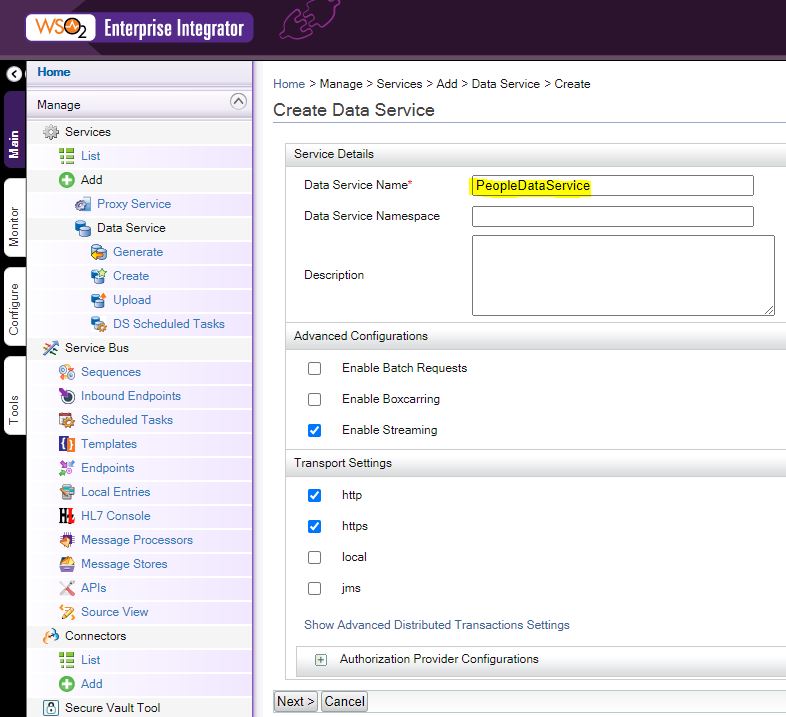
Now we create a Data Service for this, we name it “PeopleDataService”
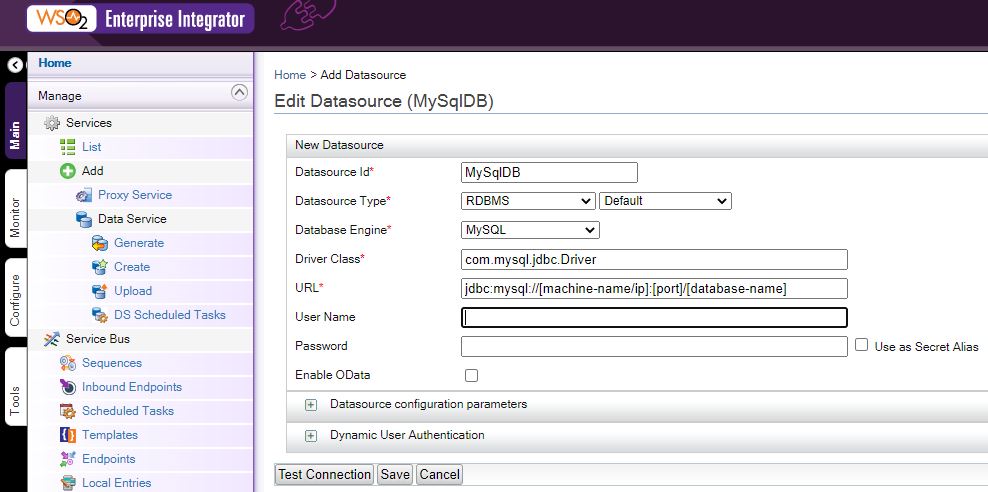
In the next step, setu a Data Source, in this demo, we used MySql, so we need to setup the MySql jdbc url
Please note you will need to put a MySql connector jar file in WSO2’s lib folder
The jar I used is “mysql-connector-java-8.0.23.jar”, you can find similar ones in MySql install or official website
Get – Search Operation

Continue to setup the Query, you will need to also define the output to be a json, use column numbers and define the output mapping to the returned column number. $1 means the 1st column of the query output

Continue to the definition, we don’t need to define any operations in the DB, so we can ignore this.

We define a Resources, this will be the WSO2 url that link to the DB query, here we will use people, and the Resource Method(or commonly called http verb) will be GET
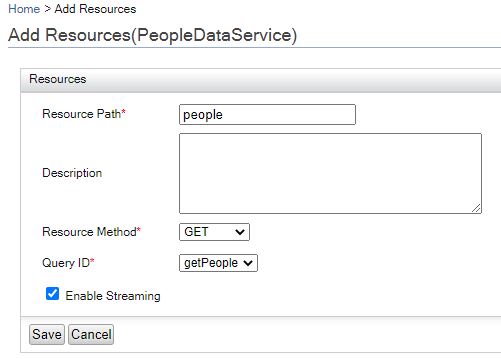
Save and finish the setup, now you should see a PeopleDataService in 1 min – refresh the page if you don’t see it

Now we can use PostMan to do a test on this Rest
You can find the end point definition on the Service Dashboard by clicking on the Data Service name
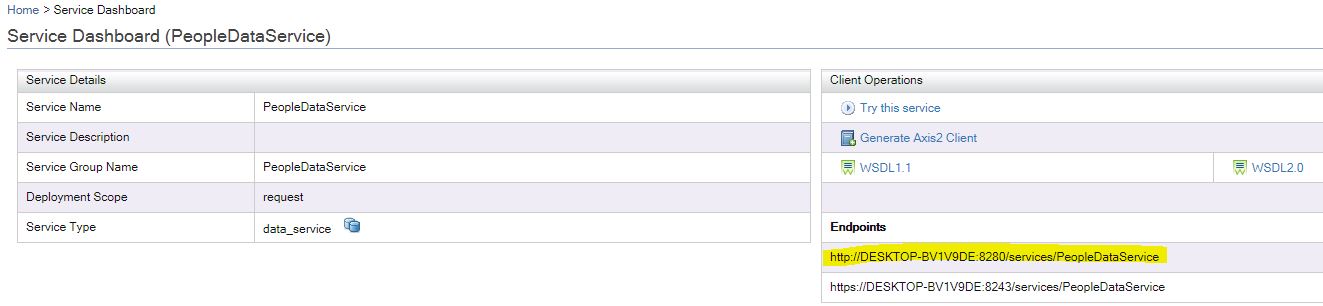
Use PostMan to do a Get operation test, and you should find it working as following

Post – Create Operation

Now we continue to create the Post/CREATE Restul API
We go inside the Service Dashboard and click the “Edit Data Service(Wizard)”, this will lead us back to the Data source definition wizard. We do not change the Data Source, but to create a new Query

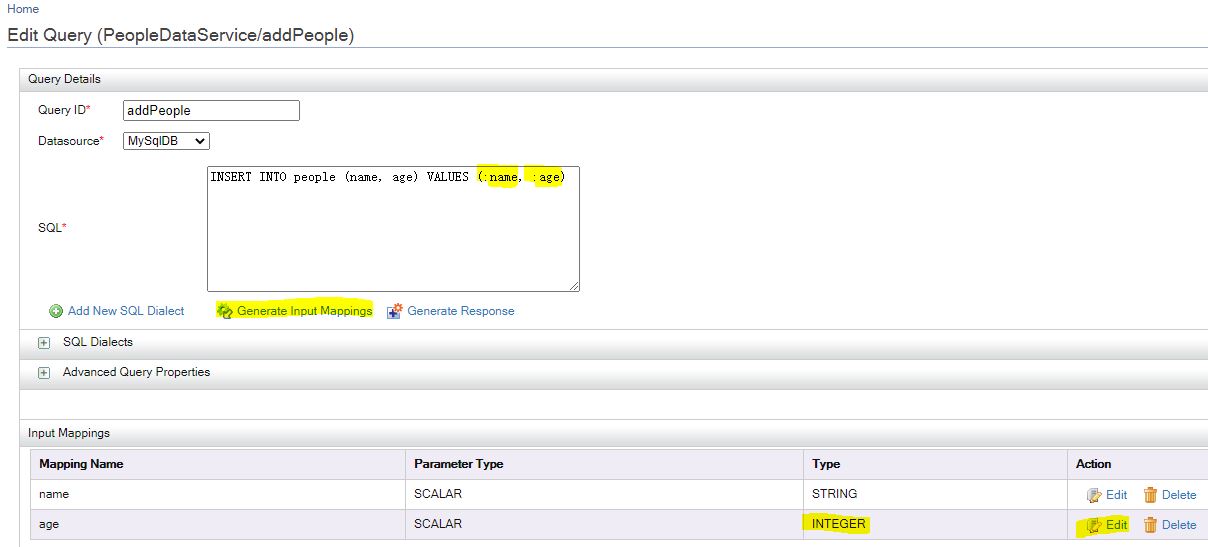
Create the query as following
Please note, the parameters you passed in through Rest must have a leading ‘:’ char
After you create the query, click the “Generate Input Mappings”, it will create the Input Mappings for you
Also please change the type to INTEGER if it’s an INTEGER column in DB, as shown below
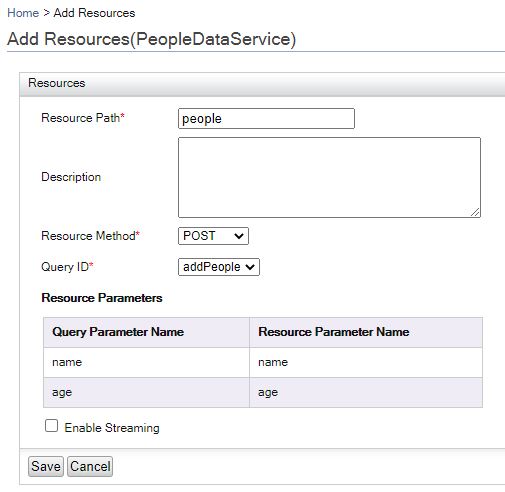
Save and continue to Add a resource to bind the Rest API to the new query
Now we can use PostMan to do the testing
For some reason, the post to insert into WSO2 is using following json payload

{"_postinscriptions": {
"name":"test",
"age":12
}
}

PostMan should show an 202 Accepted status, this means the query finished ok

Use the Get API to confirm the change, and you should see a new people is inserted
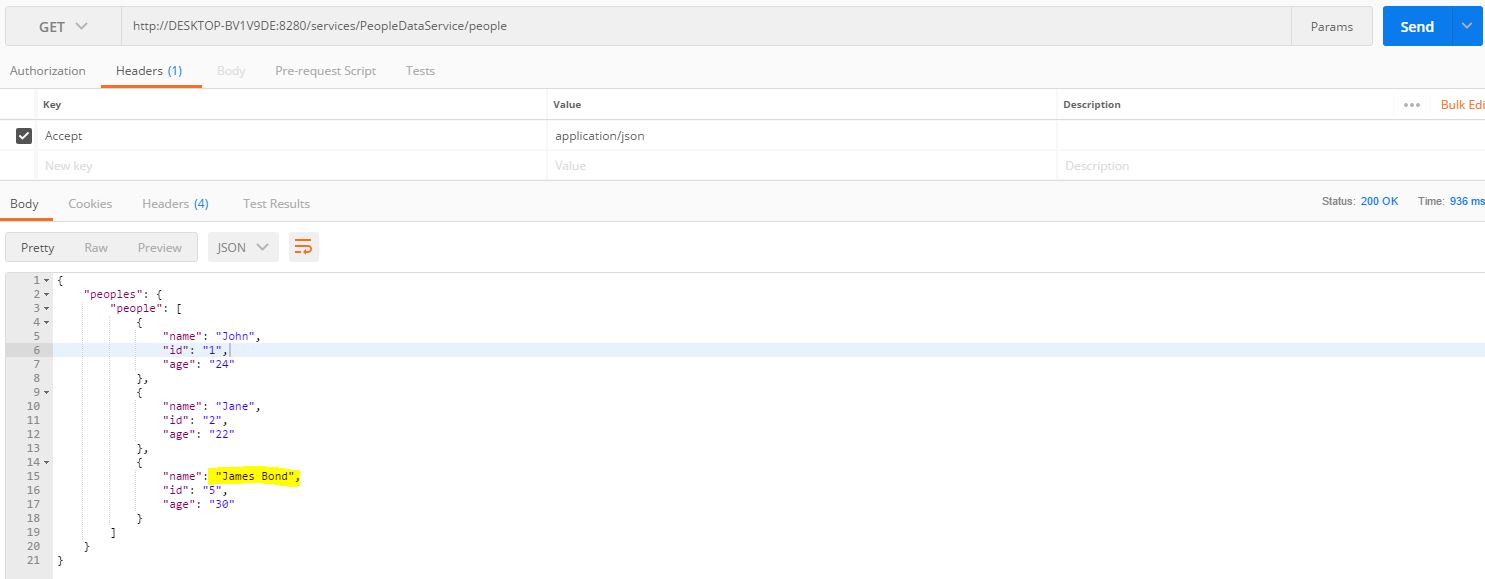
Update and Delete

Update and Delete will be similar to Create, just change the query and the Resource Method binding, and all bind to the same people resource

Following are the 2 queries for Update and Delete, please note you need to change the parameter to Integer
Update, uses PUT Method: update people set name=:name, age=:age where id=:id
Delete, uses DELETE Method: delete from people where id=:id
How to use starshipit API to create a Order?

Starshipit is commonly used by many businesses in NZ.
So I got a small requirement, I want to automatically create a label, how can I do that?

Well, Starshipit do have its integration APIs, so we can use it to create labels.
Let’s try it out. Following is the API url just incase you need.
https://www.starshipit.com/integrations

We need to create a developer account in the website
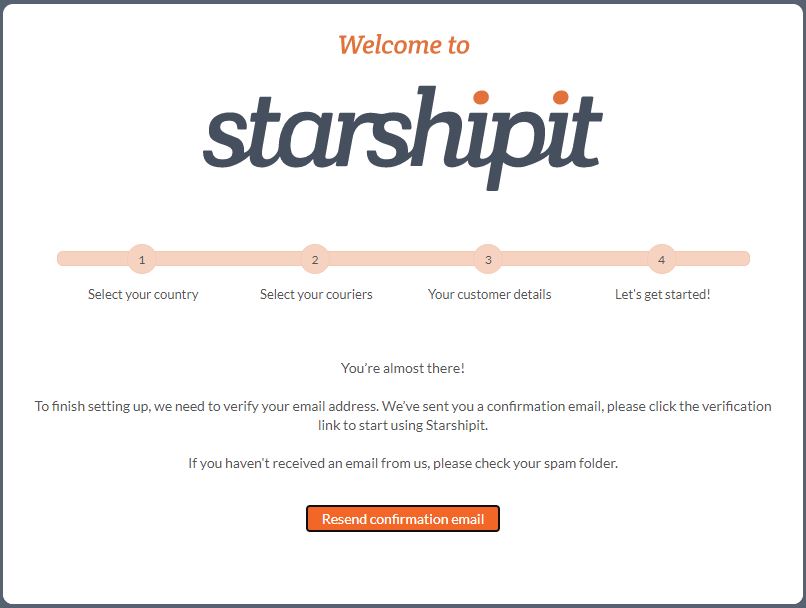
After verifying your email, you are all good to go.

To be able to test out the API, we need an Starshipit API key, to get this, we need an Starshipit account
https://developers.starshipit.com/api-key

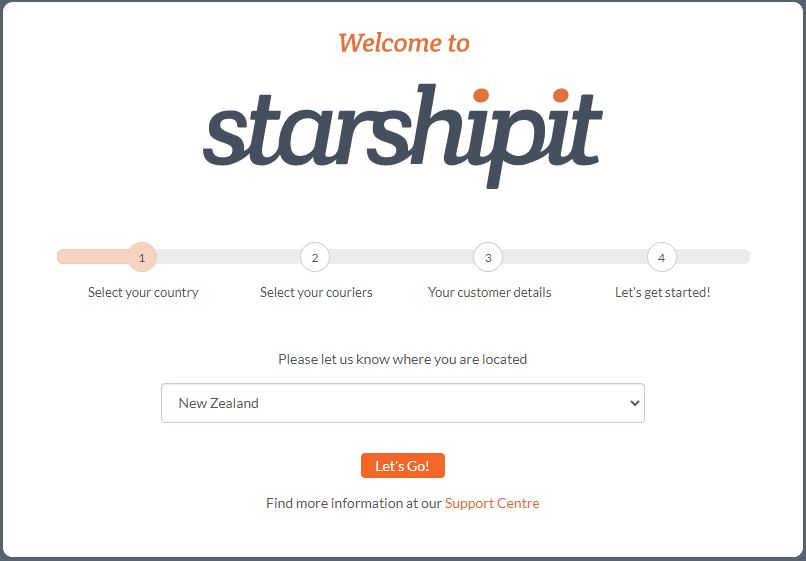
Use following url to start setting up an Starshipit account
How to setup a Starshipit account

Now you should be able to get the API key required to access the API
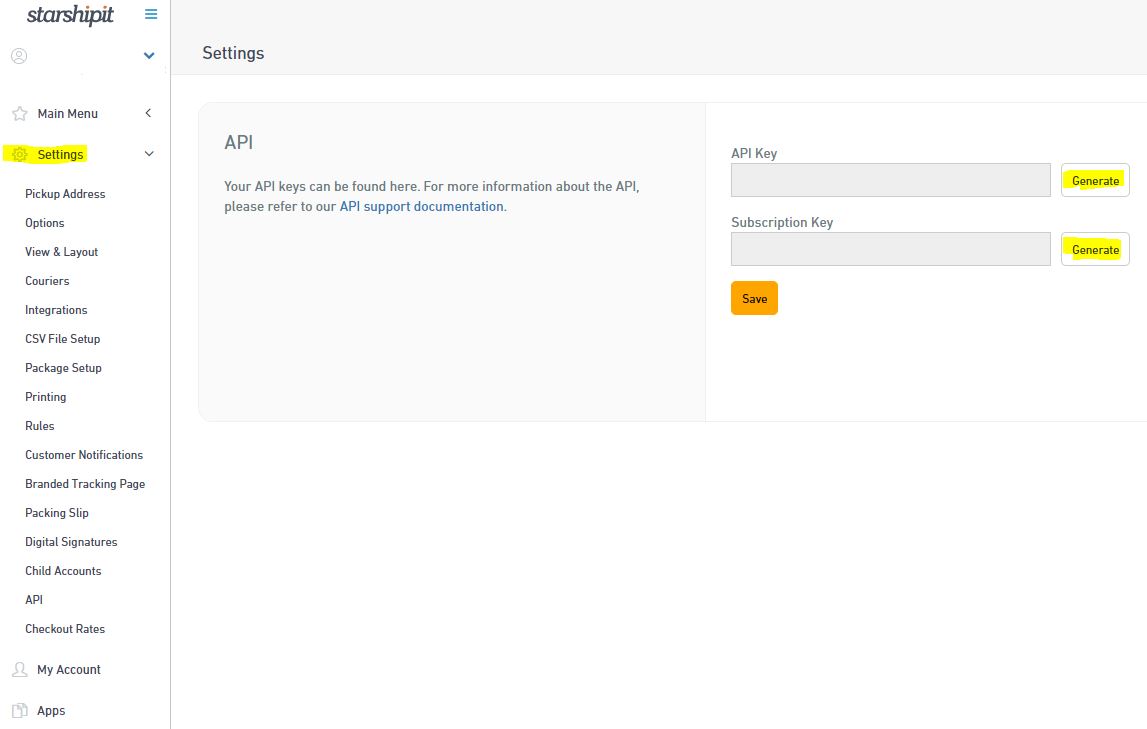
Click the Generate button in StarshipIt setup, and you should get the API key
Url: https://app.starshipit.com/Members/Settings/Api2.aspx

Also you should get your developer key
Url: https://developers.starshipit.com/developer
Click the User profile on the right top of the header bar if you don’t see it

Ok, now you should have following keys ready and handy before doing the API testing based on the Startshipit settings page and the developer profile page
API Key, Subscription Key, Primary Key, Secondary Key

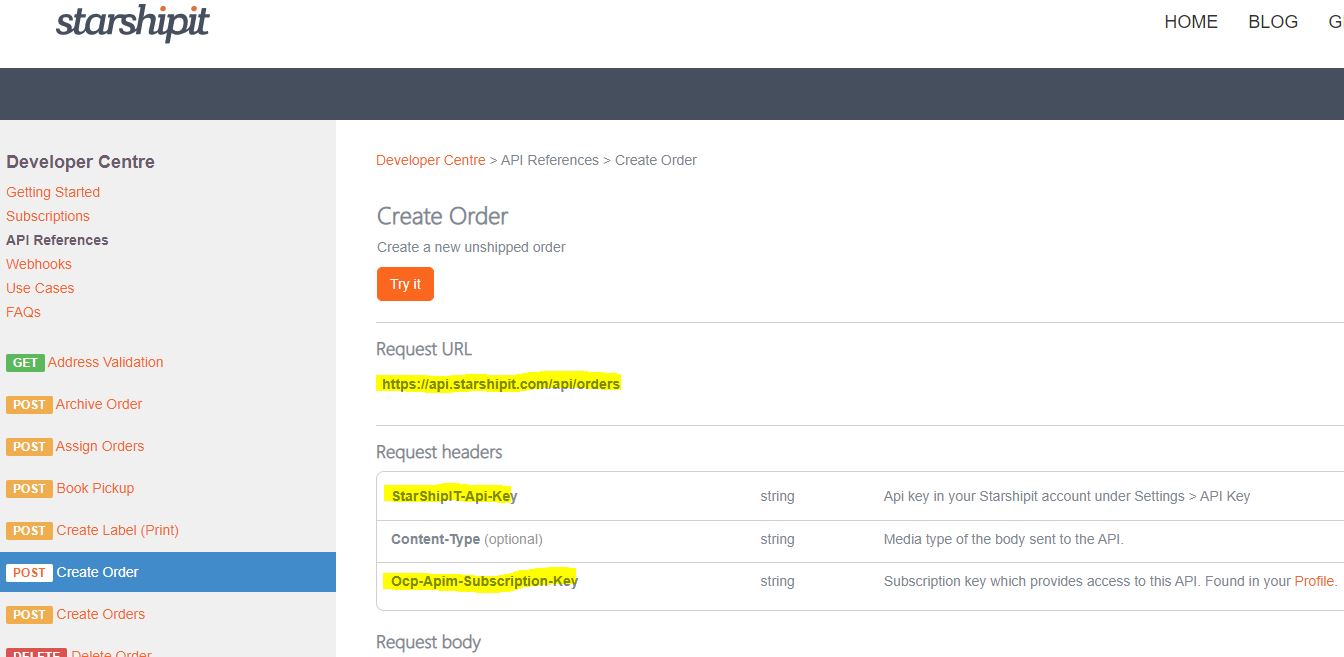
Go to Create Order page on the API Reference you should see following page relate with the API
It shows the API url, and what you should put on the Request Headers

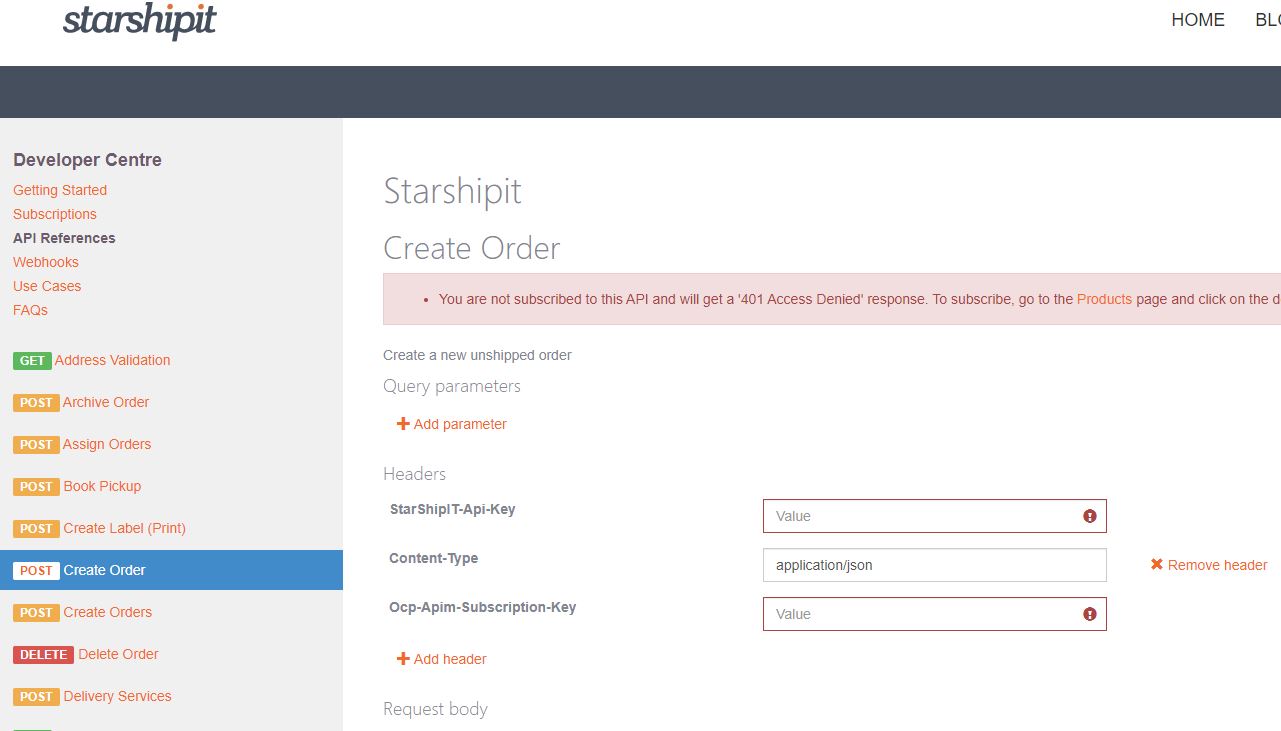
Click the “Try It” button, you should be able to try out the Create Order

Fill in your key information that’s required.
StarShip T-api-key: this is the API Key you got earlier from the Settings page
Ocp-Apim-Subscription-Key: this is the primary key you got earlier from the developer profile page
Now try to click the “Send” button at the bottom of the page, it should receive a 200 feedback

This means the API connection and call out works fine.
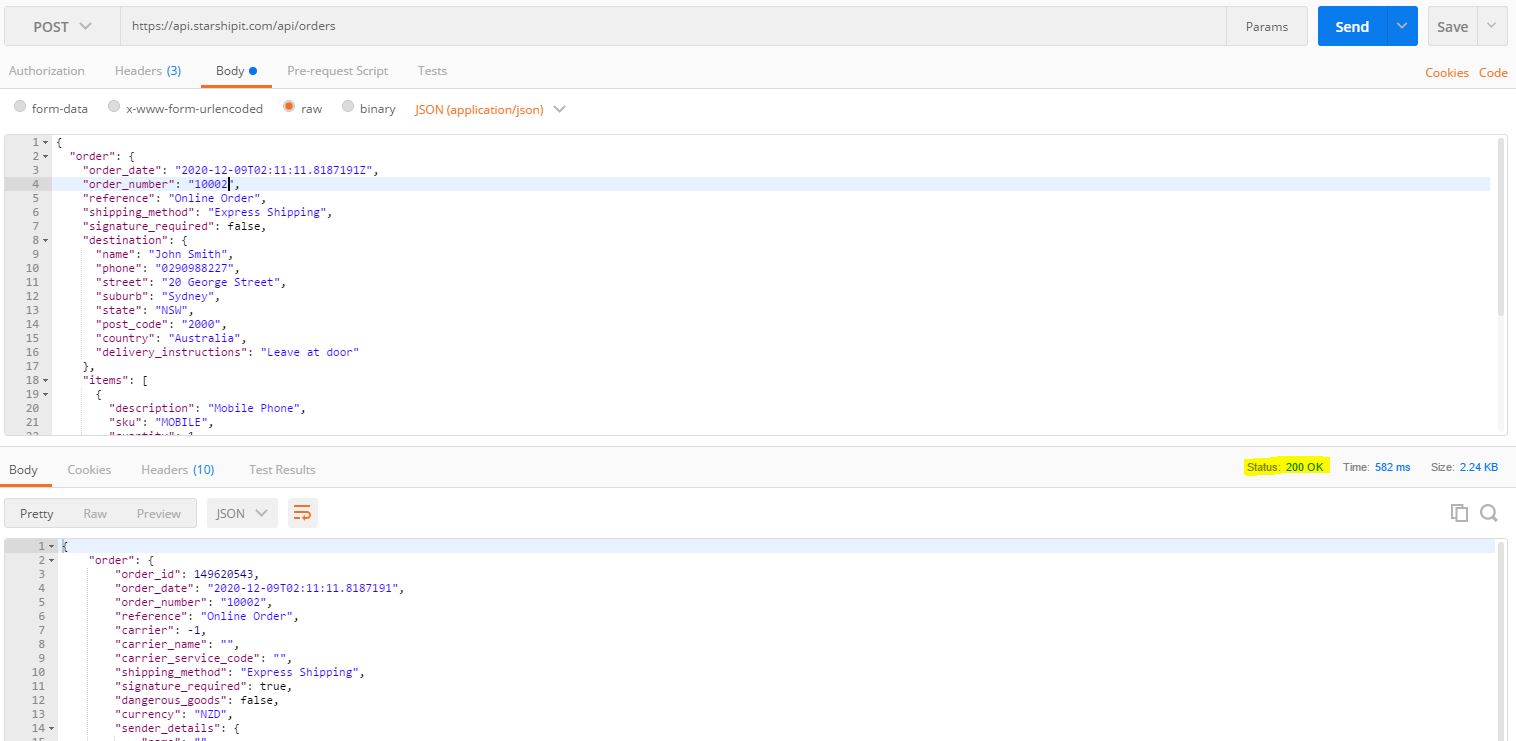
Now we try to do the same thing using PostMan on our own laptop
Setup PostMan Post request and the header as following, Please enter your own API key and Primary key

Setup the Body as following, and click the “Send” button
If everything works fine, you should receive a “200 OK” response from the Starshipit server

Congratulations, you have successfully create an Order in Starshipit

So now you can continue to use the same API setup and the API Reference to do other API calls to Starshipit.

Enjoy!

Camel – Unmarshal Csv to Java POJO

This document shows how to do following:

  1. Get a csv from a local folder,
  2. Unmarshal it to a Java pojo object array
  3. Split the array to each object
  4. Handle each pojo object by a customized code

Following is the pojo definition with camel csv format annotations


package com.zzyan.domain;

import org.apache.camel.dataformat.bindy.annotation.CsvRecord;
import org.apache.camel.dataformat.bindy.annotation.DataField;

@CsvRecord(separator = ",", skipFirstLine = true)
public class Item {

    @DataField(pos=1)
    private String transactionType;

    @DataField(pos=2)
    private String sku;

    @DataField(pos=3)
    private String itemDescrition;

    @DataField(pos=4)
    private String price;

/*
    here ignores all the getter and setters
*/

    @Override
    public String toString() {
        return "Item{" +
                "transactionType='" + transactionType + '\'' +
                ", sku='" + sku + '\'' +
                ", itemDescrition='" + itemDescrition + '\'' +
                ", price='" + price + '\'' +
                '}';
    }
}

We also define a customized processor, the processor will take in 1 Item object, and do some handling. Here we do nothing but just print it out.


package com.zzyan.processor;

import com.zzyan.domain.Item;
import lombok.extern.slf4j.Slf4j;
import org.apache.camel.Exchange;
import org.springframework.stereotype.Component;

@Component
@Slf4j
public class ItemProcessor implements org.apache.camel.Processor {
    @Override
    public void process(Exchange exchange) throws Exception {
        Item item = (Item)exchange.getIn().getBody();
        System.out.println(item.getItemDescrition());
    }
}

Finally we define the Camel Route to link these together.


package com.zzyan.route;

import com.zzyan.domain.Item;
import com.zzyan.processor.ItemProcessor;
import org.apache.camel.builder.RouteBuilder;
import org.apache.camel.dataformat.bindy.csv.BindyCsvDataFormat;
import org.apache.camel.spi.DataFormat;
import org.springframework.stereotype.Component;

//@Component
public class UnmarshalCsvRoute extends RouteBuilder {
    @Override
    public void configure() throws Exception {

        DataFormat bindy = new BindyCsvDataFormat(Item.class);

        from("timer:hello?period=10s")
                .log("Timer Invoked and the body is ${body}")
                .pollEnrich("file:c:/data/input?noop=true&readLock=none")
                .log("body: ${body}")
                .unmarshal(bindy)
                .log("The unmarshaled object is ${body}")
                .split(body())
                  .log("new Item ${body}")
                  .process(new ItemProcessor())
                .end();
    }
}

Put the csv file with the same header to c:/data/input folder, and run the spring boot project, the Route will pickup the file and do the transformation.


Camel – Fetch file from sftp and unzip

In real time integration, especially file based integration, we normally starts from fetching file from a sftp server.

It’s common that the files put on the sftp server is a zipped file with multiple files compressed together.

Following shows how to use a Camel route to fetch a zip file from the sftp server, and after that unzip the file and put to local folders.

Please refer to Spring boot + Camel hello world to see how to setup the project before creating the Route.

The code contains both getting file from a sftp, and fetch from a local folder(commented). It also includes a Choice to do the file filtering and switch to different sub-Routes if required.


package com.zzyan.route;

import org.apache.camel.Predicate;
import org.apache.camel.builder.PredicateBuilder;
import org.apache.camel.builder.RouteBuilder;
import org.apache.camel.model.dataformat.ZipFileDataFormat;
import org.springframework.stereotype.Component;

import java.util.Iterator;

//@Component
public class UnzipRoute extends RouteBuilder {
    @Override
    public void configure() throws Exception {

        // Define a Zip File format, since our Zip file have multiple zip files
        ZipFileDataFormat zipFile = new ZipFileDataFormat();
        zipFile.setUsingIterator(true);

        from("timer:hello?period=10s") // Triggered by Timer every 10 seconds
                .log("Timer Invoked and the body is ${body}")
                .pollEnrich("sftp://USERNAME@HOST/FILEPATH?password=PASSWORD&noop=true")
				// following shows pull the file from local c:/data/zipInput
                //.pollEnrich("file:c:/data/zipInput?noop=true&readLock=none")
                .log("${file:name}")
                .unmarshal(zipFile)
                .split(bodyAs(Iterator.class)).streaming()
                  .log("${file:name}")
                  .choice()
                    .when(header("CamelFileName").startsWith("Headers"))
                      .log("This is the Header")
                      .to("file:c:/data/output")
                    .otherwise()
                      .to("file:c:/data/output")
                  .endChoice()
                .end();
    }
}


How can Java/Groovy connect to Oracle Always Free Autonomous Database

Thanks to Oracle’s Cloud Always Free services, now we can have a free VM and a free Oracle Autonomous Database.

Isn’t it excited? And then you want to do some thing with it.

1 constraint of the Always Free Oracle Autonomous Database is that, you need to use it.

If you don’t use the database within 7 days, Oracle will shut the database down, you need to start it manually later. And if you don’t use it for 3 months after that, Oracle deletes the whole instance.

So, how to avoid that? Or, how to auto do something in the database to keep it alive?

An easy way to do this is to insert some data into the database periodically.

We got a VM, and we got the database, so why don’t use the VM to insert some data into the database?

So here I come up with the “ping” groovy script, which get triggered by cron job, and inserts a dummy record every hour to the Database.

Here’s how it works.

Firstly, we install Java and Groovy into the database

How to install Java and Groovy in Oracle Always free Ubuntu

Secondly, we download the Oracle Wallet, and then, referring to Oracle document on how to use JDBC thin to connect to Database, we can download all the required jar files from Oracle Database 18c (18.3) JDBC Driver and UCP Downloads. (We will need ojdbc8.jar, ucp.jar, oraclepki.jar, osdt_core.jar and osdt_cert.jar)

Put the downloaded Jar file to your Groovy /lib directory
And put the wallet to an folder, unzipped it, we need the unzipped path later in the Groovy script.

Create a table using following script

create table ping(creation_date date)

Thirdly, we create the Groovy Script as following:

//Please note the wallet path is the unzipped path
//Replace DBNAME, USERNAME, PASSWORD to your own ones
url = "jdbc:oracle:thin:@DBNAME_high?TNS_ADMIN=PATH_TO_THE_Wallet/Wallet_DBNAME"
username = "USERNAME"
password = "PASSWORD"

println url

driver = "oracle.jdbc.driver.OracleDriver"

import groovy.sql.*
sql = Sql.newInstance(url,username,password,driver)
try{
  sql.execute("insert into ping(creation_date) values (sysdate)")
} finally{
  sql.close()
}

Finally, we create a Cron job in the crontab, and let Linux schedule and trigger the Groovy script every hour

 0 */1 * * * /home/ubuntu/.sdkman/candidates/groovy/current/bin/groovy /home/ubuntu/groovy/PingDB.groovy 

If everything works fine, you should see the Ping table been populated every hour.

Now you can enjoy a none turned off Free database and VM.

How to install Java and Groovy in Oracle Always free Ubuntu

Refer to following URL to install Java and Groovy in Ubuntu

https://computingforgeeks.com/how-to-install-apache-groovy-on-ubuntu-18-04-ubuntu-16-04/

How to Install Java on Ubuntu

http://groovy-lang.org/install.html
Install Java to Ubuntu
You need to upgrate your Ubuntu to the latest version
sudo apt update
sudo apt -y upgrade
sudo reboot
sudo apt-get install default-jdk
The jdk will be installed at /usr/lib/jvm

After this, we need to setup the JAVA_HOME environment parameter
go to folder /etc

change the “environment” file and add a new line of the JAVA_HOME
you need to use sudo vi environment to open the file and edit, since this folder needs root access

JAVA_HOME=/usr/lib/jvm/default-java

after saving the file, use to load the new profile and double check the setting
source environment
echo $JAVA_HOME

Install Groovy
before installing Groovy, we need to install zip and unzip tool
sudo apt-get install -y zip
sudo apt-get install -y unzip

and after this, we refer to following Groovy official document to install Groovy
http://groovy-lang.org/install.html

We need to use sudo to install the sdkman
sudo curl -s get.sdkman.io | sudo bash

we need to change user to root to execute the sdkman-init.sh
sudo -s
source “$HOME/.sdkman/bin/sdkman-init.sh”

now install groovy using root account
sudo -s
sdk install groovy
groovy -version


The groovy was installed under following directory
/home/ubuntu/.sdkman/candidates/groovy/current/bin


need to add the same to environment so it will take in the setting in PATH
/etc/environment

now we can try to deploy the groovy script in the ubuntu server and try to run them

How can Java run Groovy script dynamically 2

This is a continue with the previous blog “How can Java run Groovy script dynamically”.

We try to do some complex things inside the groovy script, this time we tried to define a data structure directly inside the script, and see if the GroovyShell can identify it at run time and run correctly

Following are the sample script that passed to the GroovyShell

The code refers to “How to use a Groovy trait to output any class as csv?”

import java.io.ByteArrayInputStream
import java.io.Reader
import java.io.InputStreamReader
import static com.xlson.groovycsv.CsvParser.parseCsv

def sb = StringBuilder.newInstance()

/*
// TEST1 - simple CSV parsing
Reader inputReader = new InputStreamReader(new ByteArrayInputStream(input));
for(line in parseCsv(inputReader,separator:",")){
  // println line
  sb.append(line.attribute1+";"+line.attribute2)
  sb.append("\n")

}

output = sb.toString().getBytes()
*/

// TEST2 - Define data structure inside the dynamic script and gets output
def m = new MeetupMember()
m.name = "Sergio del Amo"
m.locality = "Guadalajara"
m.twitter = "https://twitter.com/sdelamo"
m.facebook = null
m.tumblr = null
m.imageUrl = "http://photos4.meetupstatic.com/photos/member/c/d/6/b/member_254392587.jpeg"
m.website = "http://www.meetup.com/es-ES/Warsaw-Groovy-User-Group/members/200767921/"

output = m.asCSV().getBytes()

// Following are the data structure definition
// You can see that this part is at the end of the script
// But GroovyShell handle it correctly
trait TraitAsCSV {
// manually provide the header to make sure the csv output is in the expected sequence
   List<String> propertyNames() {
        return ["name","locality","twitter","facebook","tumblr","background","imageUrl","website"]
    }

    String csvHeaders() {
        propertyNames().join(delimiter())
    }

    String asCSV() {
        def str = ""
        def arr = []
        for(def propName in propertyNames()) {
            def v = this."$propName"
            arr <<  (v ?: "")
        }
        arr.join(delimiter())
    }

    static String delimiter() {
     ";"
    }
}
class MeetupMember implements TraitAsCSV {
    String name
    String locality
    String twitter
    String facebook
    String tumblr
    String background
    String imageUrl
    String website
}

Spring boot + Camel hello world

This post shows how to create a helloworld by using Spring boot and Camel from scratch. It covers following 2 examples:
1. Create a Camel route to pring a “hello world” message
2. Create a Camel route to move files from folder1 to folder2

Spring boot is an easy way to create an app. Its Dependency Injection makes it especially easy to create Camel Routes.

Following are the overall steps that we need to go through for this – we use Gradle to compile in this example.
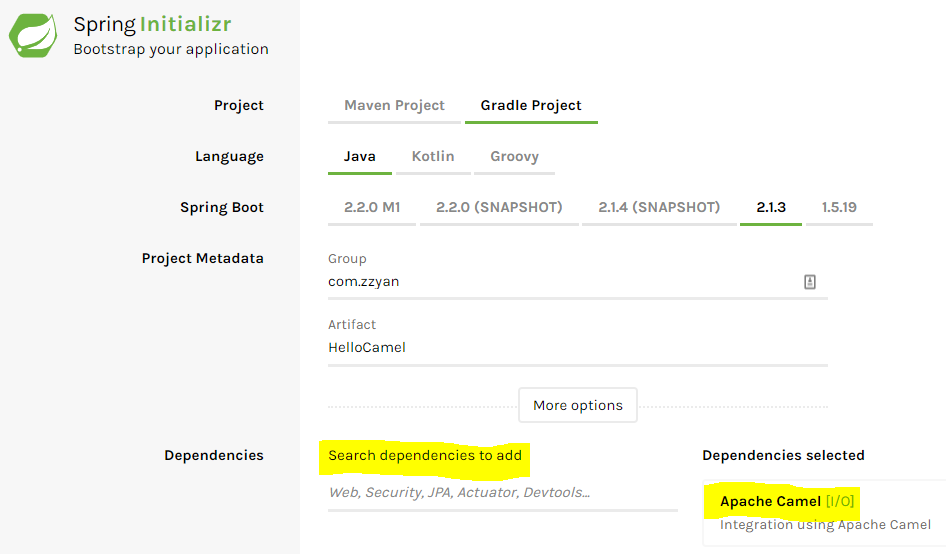
1. Goto Spring Initializr to create a Spring project with Gradle, Java, Camel option.
2. Add Camel Main run controller setting property and test
3. Create a new HelloWorld Route for the printing of “hello world” message and test
4. Create a new route to move files from folder1 to folder2 and test

Following are the key steps related:
1. Create a Spring Project using Spring Initializr:
We go to the web site and select following options to create and press “Generate Project”.
The Spring Initializr will download the project with the Camel dependency for us as a Zip
Download the zip file and unzip it locally to your PC
CreateSpringCamelProject

2. We now add a Camel Main controller setting to file “HelloCamel\src\main\resources\application.properties”, this will keep the Camel Main thread running rather than exit immediately.
# camel main loop setup
camel.springboot.main-run-controller=true

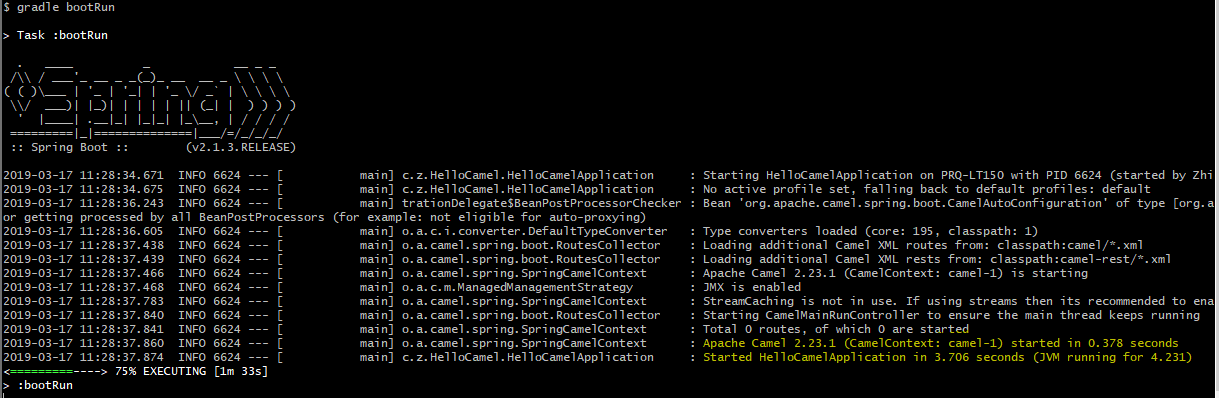
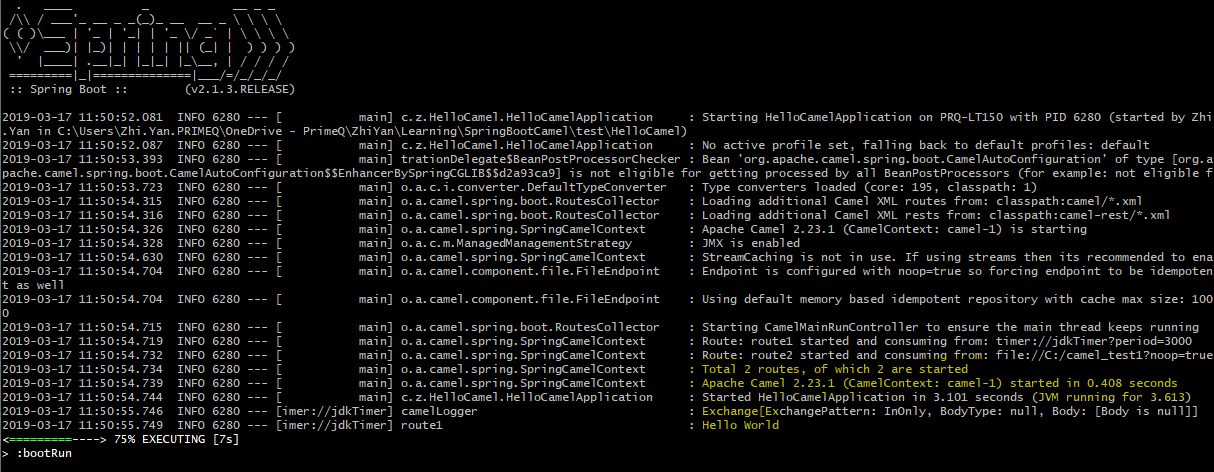
You can go to folder HelloWorld and try to run “gradle bootRun” after the setting, it should show following output, this means the camel started correctly – you can use “ctrl+c” to cancel the running afterward.
TestRun

3. We now create a HelloWorld Route to print some hello world output. Add a new folder “route” under folder “HelloCamel\src\main\java\com\zzyan\HelloCamel”, and then add a new file “Route1_HelloWorld.java” inside it.
Please note the @Component command, this tells Spring Boot it’s a spring managed bean, spring will initialize it at run time.
Paste following codes to the file and try to run it with “gradle bootRun”

import org.apache.camel.builder.RouteBuilder;
import org.apache.camel.Processor;
import org.apache.camel.Exchange;
import org.springframework.stereotype.Component;
@Component
class Route1_HelloWorld extends RouteBuilder{
@Override
public void configure() throws Exception{
from("timer://jdkTimer?period=3000")
.to("log://camelLogger?level=INFO")
.log("Hello World");
}
}

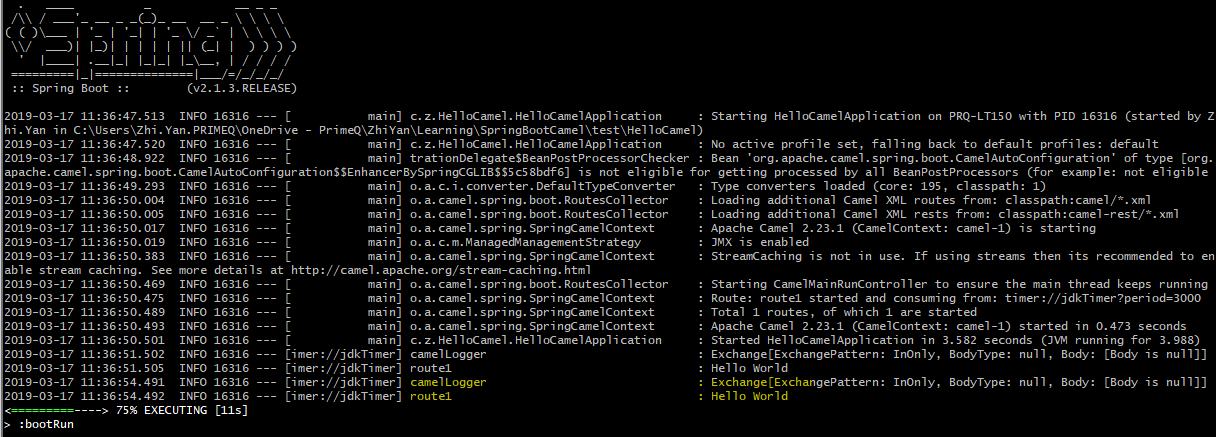
It should show following info, the Hello World message is print out correctly
HelloWorld

4. We try to add another route to the project, moves files from folder1 to folder2. Add a new file “Route2_FileTransfer.java” with following codes, PLEASE change the 2 folder names to your own.

package com.zzyan.HelloCamel.route;
import org.springframework.boot.SpringApplication;
import org.springframework.boot.autoconfigure.SpringBootApplication;
import org.apache.camel.builder.RouteBuilder;
import org.apache.camel.Processor;
import org.apache.camel.Exchange;
import org.springframework.stereotype.Component;
@Component
class Route2_FileTransfer extends RouteBuilder{
@Override
public void configure() throws Exception{
from("file:C:/camel_test1?noop=true").to("file:C:/camel_test2");
}
}


put a file in folder1, in my case it’s c:/camel_test1
run the project by “gradle bootRun”, and it should show both Routes are running.
it shows 2 routes are running now
FileTransfer

check the folder2 folder in your own PC, it should copy all the files from folder1 to folder2:

CopiedFile

If both tests work fine, congratulation, you have successfully used Spring boot and Camel to create 2 Routes.

You can continue to create more Routes with specific requirements – transform files, unmarshal csv etc, with the help of Camel, this would be straightforward.

You can also containerize the project to deploy it as a microservice to a cloud platform, which will be covered later in the blog.

How can Java run Groovy script dynamically

 –  This blog shows how to Integrate Groovy into Java

Java is powerful and it can do almost everything.

However, it feels tired sometimes to spend hours on the setting before seeing a ‘Hello World’ to print out.

On the contrast, Groovy is easy to use as a scripting language on top of Java.

Sometimes it gives me an idea if we can merge these 2 together to make the life easier.

This blog shows a way to run Groovy Scripts dynamically inside Java – just do some simple change, we can make it a simple and powerful tool that can be embedded into existing Java projects as a scripting addon.

Following codes uses 2 different kinds of Groovy scripting running method, please refer to Standard Groovy documentation “Integrating Groovy into applications” for the difference.

Transformer1 uses GroovyScriptEngine

Transformer2 uses GroovyShell


import groovy.lang.Binding;
import groovy.lang.GroovyShell;
import groovy.util.GroovyScriptEngine;
import java.io.File;
import java.nio.file.Files;
import org.apache.commons.io.FileUtils;

public class GroovyTransformer {

public static void main(String[] args) throws Exception {
groovyScriptTransformer1();
// groovyScriptTransformer2();
}

public static void groovyScriptTransformer1() throws Exception {
byte[] input = Files.readAllBytes(new File("c:/test/order_sample.csv").toPath());

Binding sharedData = new Binding();
sharedData.setVariable("input", input);

String[] roots = new String[] { "c:/test" };
GroovyScriptEngine gse = new GroovyScriptEngine(roots);
gse.run("csvParser.groovy", sharedData);

byte[] output = (byte[]) sharedData.getVariable("output");
System.out.println(new String(output));

}

public static void groovyScriptTransformer2() throws Exception {

// get the source file bytes
byte[] input = Files.readAllBytes(new File("c:/test/order_sample.csv").toPath());
Binding sharedData = new Binding();
sharedData.setVariable("input", input);

// get the groovy script as a String
String script = FileUtils.readFileToString(new File("c:/test/csvParser.groovy"), "UTF-8");
System.out.println(script);

// create a groovy shell and run the script
GroovyShell shell = new GroovyShell(sharedData);
shell.evaluate(script);

// get the output of the transformation
byte[] output = (byte[]) sharedData.getVariable("output");
System.out.println(new String(output));
}

}

Following is the sample file “order_sample.csv”


Order Number,Date,To Name,
10090,29/10/15,Sharen Shirley,
10091,29/10/15,Justina Jump,
10092,29/10/15,Macie Maxon,
10093,29/10/15,Shamika Solt,
10094,29/10/15,Marcos Mccabe,

Following is the sample Groovy script “csvParser.groovy”, it did nothing but parsed the csv file into lines, it can easily be changed to transform to other file formats – xml, json or marshaling to groovy/java objects.


import java.io.ByteArrayInputStream
import java.io.Reader
import java.io.InputStreamReader
import static com.xlson.groovycsv.CsvParser.parseCsv
def sb = StringBuilder.newInstance()

Reader inputReader = new InputStreamReader(new ByteArrayInputStream(input));
for(line in parseCsv(inputReader,separator:',')){
// println line
sb.append(line)
sb.append("\n")
}

output = sb.toString().getBytes()