
Oracle EBS WMS provides a powerful receiving and putaway engine to help customers to solve complex putaway scenarios.
Following test shows how to do a PO standard receive using WMS RF
– It shows how to setup a putaway rule to direct the receiving putaway
Following are the main steps
- Setup a putaway rule
- Assign the putaway rule for the specific Item in the Rules Workbench
- Create a PO with Standard receiving control
- Use WMS mobile to receive the PO and create LPN
- Check the Putaway tasks created for this LPN
- Use ‘Move Any LPN’ to trigger putaway the LPN
- Check the Location suggested by the system and make sure it’s expected
Detail Steps and screenshots are as following
1. Setup Putawy Rule
This is a simple rule hard coded the putaway subinventory to ‘CASE’
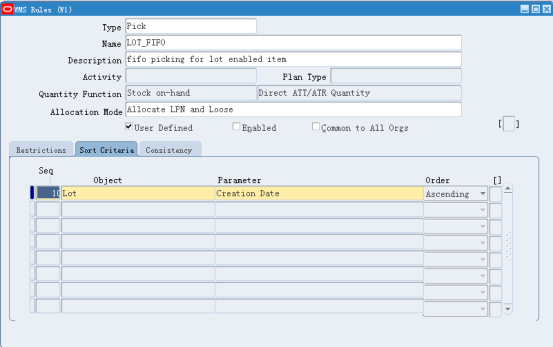
In real time we can use the ‘Quantity Function’ and ‘Sort Criteria’ to setup complex Putaway rules.
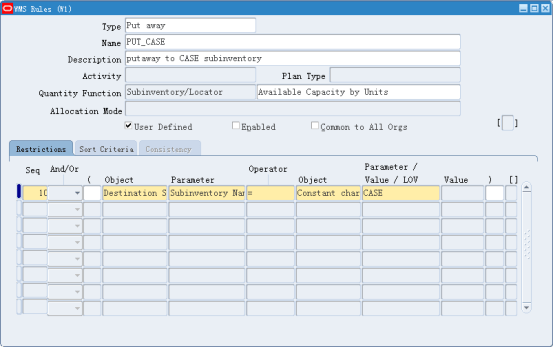
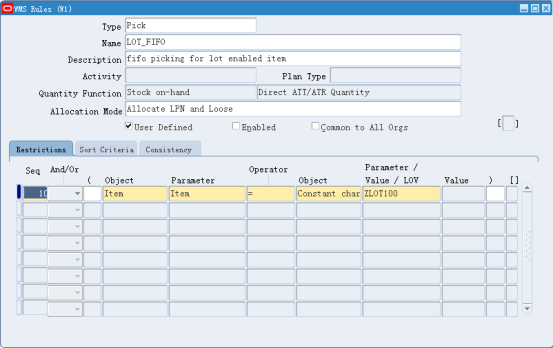
2.In Rules Workbench, assign the rule to Item ZY100
We can setup multiple Putaway Rules and group by Putaway Strategy in real life case

3.Create a PO with Standard Routing
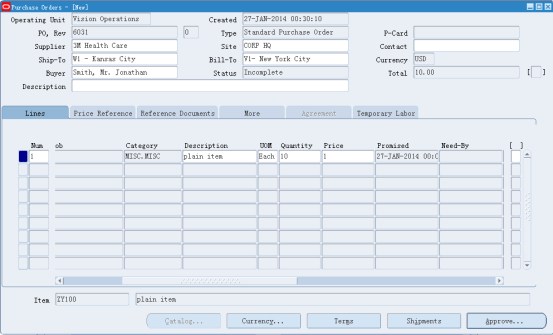
4.Now we can use WMS Mobile to trigger a PO Receive
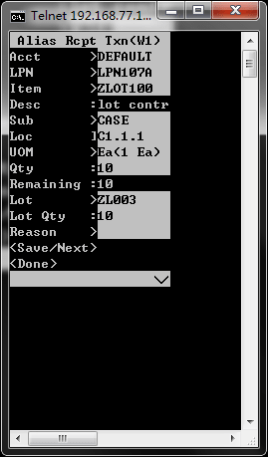
During receiving, we create an LPN ‘LPN109A’ for this receiving and input detail received SKU/Quantity, in this case it’s ZY100 with 10 quantity
In Live we will apply a pre-printed LPN Label to the pallet and scan as the LPN number or use portable printer to print out the Label real time.
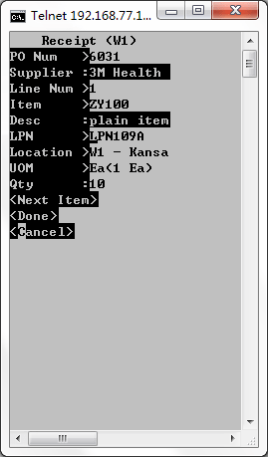
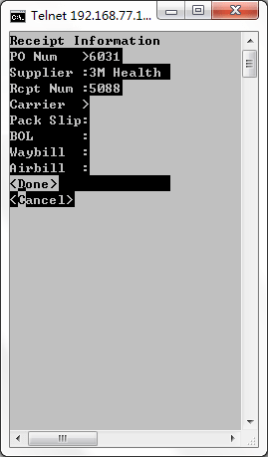
5. Check the Tasks workbench in EBS, it will create a Putaway Task
If we have enabled the Task setup, the worker who can accept the same Task Type can automatically accept this Task in Mobie and work on it.
In this test we can simply use ‘Move Any LPN’ with the LPN number to trigger the Putaway

6.Use ‘Move Any LPN’ function to trigger the Putaway
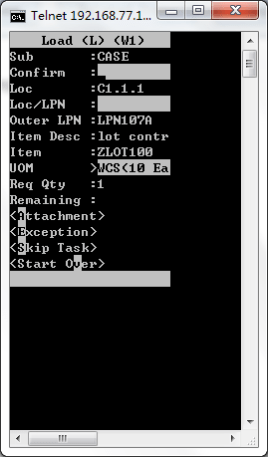
In this step, system will use the Putaway rule we have setup and get the 1st available Locator in the CASE subinventory
The system suggested subinventory is CASE, which means the Rule engine runned correctly.
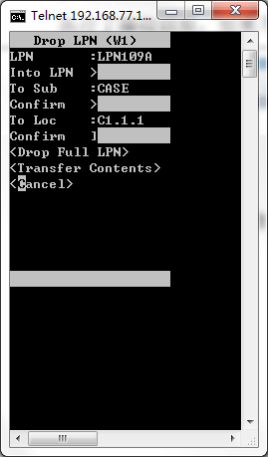
7. After putaway, the stock will reside in the same locator.




 Zhi Yan Blog