How to upload a file in VBCS

Oracle VBCS is a great tool that increase your productivity.

However, it has its constraints, since it’s contained within Oracle controlled environment, you don’t get all the component handler as you do when using JET.

Luckily, we do find tricks to go around the blocks when referring back to JET.

File upload function is a requirement for most applications, end users will get a plain text file from external systems or manually create them, and want to import it into the application directly through web UI.

But VBCS do not provide the option for importing files.

Following is how we can solve this issue.

First, we import the component “oj-file-picker” to the page configuration

"oj-file-picker": {
"path": "ojs/ojfilepicker"
}

Second, we add a file picker in the page and add a select listener to it through UI

<oj-file-picker id=”oj-file-picker–0001″ selection-mode=”single” on-oj-select=”[[$listeners.ojFilePicker0001OjSelect]]”></oj-file-picker>

Finally, and the most important part, we add following code to the system customize function, and hook it with the action chain created for the file picker select event

PageModule.prototype.selectListener = function (detail) {
var fileContent = PageModule.prototype.promiseUploadFile(detail).then(function(readerResult){
  console.log('filecontent in promise',readerResult);
  return readerResult;
  },function(){
	});    

  console.log('filecontent outside promise',fileContent);

  return fileContent;
};

PageModule.prototype.promiseUploadFile = function (detail){
return new Promise(function(resolve, reject){
  var files = detail.files;
  var file = files[0];
  var reader = new FileReader();
  reader.addEventListener("loadend",function(){
	resolve(reader.result);
  });

  reader.readAsText(file);
});
};

This way, we can get the select output from the function.

The function itself uses Promise, that’s why it contains 2 parts. When calling from action chain, you need to use function “selectListener” to get the selected file return.

Spring boot + Camel hello world

This post shows how to create a helloworld by using Spring boot and Camel from scratch. It covers following 2 examples:
1. Create a Camel route to pring a “hello world” message
2. Create a Camel route to move files from folder1 to folder2

Spring boot is an easy way to create an app. Its Dependency Injection makes it especially easy to create Camel Routes.

Following are the overall steps that we need to go through for this – we use Gradle to compile in this example.
1. Goto Spring Initializr to create a Spring project with Gradle, Java, Camel option.
2. Add Camel Main run controller setting property and test
3. Create a new HelloWorld Route for the printing of “hello world” message and test
4. Create a new route to move files from folder1 to folder2 and test

Following are the key steps related:
1. Create a Spring Project using Spring Initializr:
We go to the web site and select following options to create and press “Generate Project”.
The Spring Initializr will download the project with the Camel dependency for us as a Zip
Download the zip file and unzip it locally to your PC
CreateSpringCamelProject

2. We now add a Camel Main controller setting to file “HelloCamel\src\main\resources\application.properties”, this will keep the Camel Main thread running rather than exit immediately.
# camel main loop setup
camel.springboot.main-run-controller=true

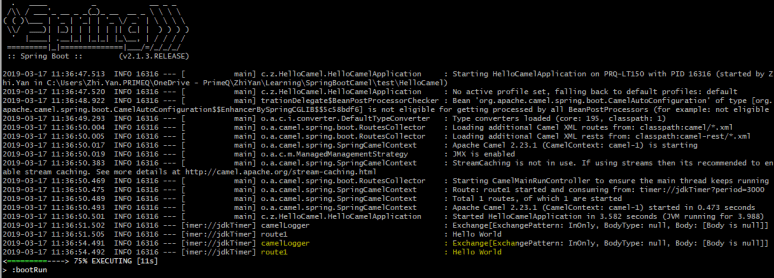
You can go to folder HelloWorld and try to run “gradle bootRun” after the setting, it should show following output, this means the camel started correctly – you can use “ctrl+c” to cancel the running afterward.
TestRun

3. We now create a HelloWorld Route to print some hello world output. Add a new folder “route” under folder “HelloCamel\src\main\java\com\zzyan\HelloCamel”, and then add a new file “Route1_HelloWorld.java” inside it.
Please note the @Component command, this tells Spring Boot it’s a spring managed bean, spring will initialize it at run time.
Paste following codes to the file and try to run it with “gradle bootRun”

import org.apache.camel.builder.RouteBuilder;
import org.apache.camel.Processor;
import org.apache.camel.Exchange;
import org.springframework.stereotype.Component;
@Component
class Route1_HelloWorld extends RouteBuilder{
@Override
public void configure() throws Exception{
from("timer://jdkTimer?period=3000")
.to("log://camelLogger?level=INFO")
.log("Hello World");
}
}

It should show following info, the Hello World message is print out correctly
HelloWorld

4. We try to add another route to the project, moves files from folder1 to folder2. Add a new file “Route2_FileTransfer.java” with following codes, PLEASE change the 2 folder names to your own.

package com.zzyan.HelloCamel.route;
import org.springframework.boot.SpringApplication;
import org.springframework.boot.autoconfigure.SpringBootApplication;
import org.apache.camel.builder.RouteBuilder;
import org.apache.camel.Processor;
import org.apache.camel.Exchange;
import org.springframework.stereotype.Component;
@Component
class Route2_FileTransfer extends RouteBuilder{
@Override
public void configure() throws Exception{
from("file:C:/camel_test1?noop=true").to("file:C:/camel_test2");
}
}


put a file in folder1, in my case it’s c:/camel_test1
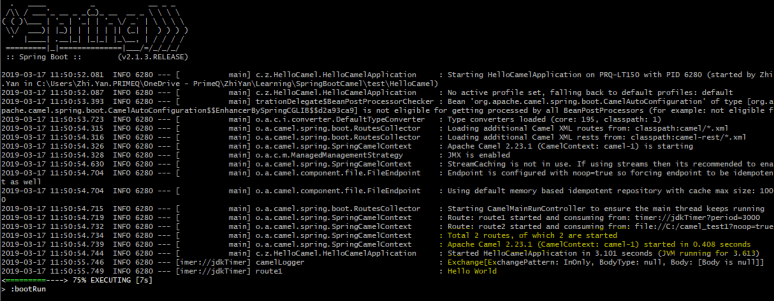
run the project by “gradle bootRun”, and it should show both Routes are running.
it shows 2 routes are running now
FileTransfer

check the folder2 folder in your own PC, it should copy all the files from folder1 to folder2:

CopiedFile

If both tests work fine, congratulation, you have successfully used Spring boot and Camel to create 2 Routes.

You can continue to create more Routes with specific requirements – transform files, unmarshal csv etc, with the help of Camel, this would be straightforward.

You can also containerize the project to deploy it as a microservice to a cloud platform, which will be covered later in the blog.

How can Java run Groovy script dynamically

 –  This blog shows how to Integrate Groovy into Java

Java is powerful and it can do almost everything.

However, it feels tired sometimes to spend hours on the setting before seeing a ‘Hello World’ to print out.

On the contrast, Groovy is easy to use as a scripting language on top of Java.

Sometimes it gives me an idea if we can merge these 2 together to make the life easier.

This blog shows a way to run Groovy Scripts dynamically inside Java – just do some simple change, we can make it a simple and powerful tool that can be embedded into existing Java projects as a scripting addon.

Following codes uses 2 different kinds of Groovy scripting running method, please refer to Standard Groovy documentation “Integrating Groovy into applications” for the difference.

Transformer1 uses GroovyScriptEngine

Transformer2 uses GroovyShell


import groovy.lang.Binding;
import groovy.lang.GroovyShell;
import groovy.util.GroovyScriptEngine;
import java.io.File;
import java.nio.file.Files;
import org.apache.commons.io.FileUtils;

public class GroovyTransformer {

public static void main(String[] args) throws Exception {
groovyScriptTransformer1();
// groovyScriptTransformer2();
}

public static void groovyScriptTransformer1() throws Exception {
byte[] input = Files.readAllBytes(new File("c:/test/order_sample.csv").toPath());

Binding sharedData = new Binding();
sharedData.setVariable("input", input);

String[] roots = new String[] { "c:/test" };
GroovyScriptEngine gse = new GroovyScriptEngine(roots);
gse.run("csvParser.groovy", sharedData);

byte[] output = (byte[]) sharedData.getVariable("output");
System.out.println(new String(output));

}

public static void groovyScriptTransformer2() throws Exception {

// get the source file bytes
byte[] input = Files.readAllBytes(new File("c:/test/order_sample.csv").toPath());
Binding sharedData = new Binding();
sharedData.setVariable("input", input);

// get the groovy script as a String
String script = FileUtils.readFileToString(new File("c:/test/csvParser.groovy"), "UTF-8");
System.out.println(script);

// create a groovy shell and run the script
GroovyShell shell = new GroovyShell(sharedData);
shell.evaluate(script);

// get the output of the transformation
byte[] output = (byte[]) sharedData.getVariable("output");
System.out.println(new String(output));
}

}

Following is the sample file “order_sample.csv”


Order Number,Date,To Name,
10090,29/10/15,Sharen Shirley,
10091,29/10/15,Justina Jump,
10092,29/10/15,Macie Maxon,
10093,29/10/15,Shamika Solt,
10094,29/10/15,Marcos Mccabe,

Following is the sample Groovy script “csvParser.groovy”, it did nothing but parsed the csv file into lines, it can easily be changed to transform to other file formats – xml, json or marshaling to groovy/java objects.


import java.io.ByteArrayInputStream
import java.io.Reader
import java.io.InputStreamReader
import static com.xlson.groovycsv.CsvParser.parseCsv
def sb = StringBuilder.newInstance()

Reader inputReader = new InputStreamReader(new ByteArrayInputStream(input));
for(line in parseCsv(inputReader,separator:',')){
// println line
sb.append(line)
sb.append("\n")
}

output = sb.toString().getBytes()

Xml Helper Class for Groovy / Java

Using the standard java XML library could be a little bit complex, especially when you just want a quick handling of XML files and don’t want to dive deep into the codes that parse it.

Following code provides a wrapped helper class which helps to do this.


import java.io.ByteArrayInputStream;
import java.io.File;
import java.io.FileInputStream;
import java.io.IOException;
import java.io.InputStream;

import java.io.StringWriter;
import java.io.Writer;

import javax.xml.parsers.DocumentBuilder;
import javax.xml.parsers.DocumentBuilderFactory;
import javax.xml.transform.OutputKeys;
import javax.xml.transform.Transformer;
import javax.xml.transform.TransformerFactory;
import javax.xml.transform.dom.DOMSource;
import javax.xml.transform.stream.StreamResult;
import javax.xml.xpath.XPath;
import javax.xml.xpath.XPathConstants;
import javax.xml.xpath.XPathFactory;

import org.w3c.dom.Document;
import org.w3c.dom.Node;
import org.w3c.dom.NodeList;

public class XmlUtil {
public static Document getXmlDocumentByString(String xmlString) {
Document doc = null;
try {
InputStream is = new ByteArrayInputStream(xmlString.getBytes());

DocumentBuilderFactory dbFactory = DocumentBuilderFactory.newInstance();
dbFactory.setNamespaceAware(false);
DocumentBuilder dBuilder = dbFactory.newDocumentBuilder();
doc = dBuilder.parse(is);

} catch (Exception ex) {
ex.printStackTrace();
}
return doc;
}

public static Document getXmlDocumentByBytes(byte[] inputBytes) {
Document doc = null;
try {
InputStream is = new ByteArrayInputStream(inputBytes);

DocumentBuilderFactory dbFactory = DocumentBuilderFactory.newInstance();
dbFactory.setNamespaceAware(false);
DocumentBuilder dBuilder = dbFactory.newDocumentBuilder();
doc = dBuilder.parse(is);

} catch (Exception ex) {
ex.printStackTrace();
}
return doc;
}

public static NodeList getXmlNodeListByXPath(Document doc, String xpath) throws Exception {
XPath xPath = XPathFactory.newInstance().newXPath();
return (NodeList) xPath.compile(xpath).evaluate(doc, XPathConstants.NODESET);
}

public static NodeList getXmlNodeListByXPath(Node node, String xpath) throws Exception {
XPath xPath = XPathFactory.newInstance().newXPath();
return (NodeList) xPath.compile(xpath).evaluate(node, XPathConstants.NODESET);
}

public static Node getXmlNodeByXPath(Node node, String xpath) throws Exception {
XPath xPath = XPathFactory.newInstance().newXPath();
return (Node) xPath.compile(xpath).evaluate(node, XPathConstants.NODE);
}

public static Document removeNodesByTag(Document xmlDoc, String nodeTag) {
NodeList nl = xmlDoc.getElementsByTagName(nodeTag);
for (int i = nl.getLength() - 1; i >= 0; i--) {
Node n = nl.item(i);
n.getParentNode().removeChild(n);
}

return xmlDoc;
}

public static String prettyPrint(Document xml) throws Exception {
Transformer tf = TransformerFactory.newInstance().newTransformer();
tf.setOutputProperty(OutputKeys.ENCODING, "UTF-8");
tf.setOutputProperty(OutputKeys.INDENT, "yes");
Writer out = new StringWriter();
tf.transform(new DOMSource(xml), new StreamResult(out));
return out.toString();
}

// following file exscapes the xml specific chars inside the string.
public static String escapeXml(String s) {
return s.replaceAll("&", "&")
.replaceAll(">", ">")
.replaceAll("<", "<")
.replaceAll("\"", """)
.replaceAll("'", "'");
}

public static byte[] readBytesFromFile(String filePath) {

FileInputStream fileInputStream = null;
byte[] bytesArray = null;
try {

File file = new File(filePath);
bytesArray = new byte[(int) file.length()];

//read file into bytes[]
fileInputStream = new FileInputStream(file);
fileInputStream.read(bytesArray);

} catch (IOException e) {
e.printStackTrace();
} finally {
if (fileInputStream != null) {
try {
fileInputStream.close();
} catch (IOException e) {
e.printStackTrace();
}
}
}
return bytesArray;
}
}


How to get Oracle ERP Cloud BI Publisher Reports by Groovy / Java

Sometimes we need to export some data from Oracle ERP / SCM Cloud.

However, Oracle didn’t provide us direct connections to the backend database.

There are 2 ways we can get the data back from ERP Cloud, one is through the web services (soap/restful) defined for different data objects, another is through the BI Publisher calls to export a data only report.

This blog shows how to use Groovy / Java to export a BI Publisher Report from Oracle ERP Cloud – Normally we will create some standalone reports within BI Publisher, and make its output to be csv only or xml only.

Following is the code that shows how to extract it.

The code uses standard apache http client package which can be found here: Apache HttpClient

import org.apache.http.HttpResponse;
import org.apache.http.client.ClientProtocolException;
import org.apache.http.client.HttpClient;
import org.apache.http.client.methods.HttpPost;
import org.apache.http.entity.StringEntity;
import org.apache.http.impl.client.HttpClientBuilder;
import com.sun.org.apache.xml.internal.security.utils.Base64;
import java.text.MessageFormat;


String url = "https://YOUR_ERP_CLOUD_ENVIRONMENT/xmlpserver/services/ExternalReportWSSService";
String authStr = "USERNAME:PASSWORD";
HttpClient client = HttpClientBuilder.create().build();
HttpPost post = new HttpPost(url);

// set credential
byte[] authBytes = authStr.getBytes("UTF-8");
String auth = Base64.encode(authBytes);
post.setHeader("Authorization", "Basic " + auth);
post.setHeader("Content-Type", "application/soap+xml;charset=UTF-8");

String payload =
	'''
	<soap:Envelope xmlns:pub="http://xmlns.oracle.com/oxp/service/PublicReportService" xmlns:soap="http://www.w3.org/2003/05/soap-envelope">
		<soap:Body>
			<pub:runReport>
				<pub:reportRequest>
					<pub:attributeFormat>xml</pub:attributeFormat>
					<pub:attributeLocale/>
					<pub:attributeTemplate/>
					<pub:reportAbsolutePath>/Custom/REPORT_PATH/REPORT_NAME.xdo</pub:reportAbsolutePath>
					<pub:sizeOfDataChunkDownload>-1</pub:sizeOfDataChunkDownload>
					<pub:parameterNameValues>
						<pub:item>
							<pub:label>PARAMETER1</pub:label>
							<pub:name>PARAMETER1</pub:name>
							<pub:values>
								<pub:item>{0}</pub:item>
							</pub:values>
						</pub:item>
					</pub:parameterNameValues>
				</pub:reportRequest>
				<pub:appParams/>
			</pub:runReport>
		</soap:Body>
	</soap:Envelope>
	'''

payload = MessageFormat.format(payload, "PARAMETER_VALUE");

post.setEntity(new StringEntity(payload));

// execute the request and get the response
HttpResponse response = client.execute(post);

// get the result, you can use apache IOUtils to convert the contents InputStream to string 
BufferedReader rd = new BufferedReader(new InputStreamReader(response.getEntity().getContent()));
StringBuffer result = new StringBuffer();
String line = "";
while ((line = rd.readLine()) != null) {
	result.append(line);
}
print( result.toString());


How to import attachments to Oracle ERP Cloud

Sometimes, when doing integration, we need to import attachments to Oracle ERP Cloud.

Oracle ERP Cloud have a common import framework for ERP/SCM Cloud.

We can find the attachment context using following SQL or Oracle Doc 2369923.1

SELECT * FROM FUN_ERP_ATTACHMENT_CONTEXTS

Take AR for example, we can get the SQL defined here for the AR attachment.
The :1, :2, :3, :4 are the keys we need to provide in the web service payload when calling the attachment service:

SELECT ARC.CUSTOMER_TRX_ID FROM RA_CUSTOMER_TRX_ALL ARC, RA_BATCH_SOURCES_ALL BS
WHERE
ORG_ID = (SELECT BU_ID FROM FUN_ALL_BUSINESS_UNITS_V WHERE BU_NAME = :1)
AND TRX_NUMBER = :2 AND ARC.BATCH_SOURCE_SEQ_ID = BS.BATCH_SOURCE_SEQ_ID
AND BS.SET_ID IN (FND_SetID_Utility.getSetID('AR_TRANSACTION_SOURCE','BU',ARC.ORG_ID), 0)
AND BS.NAME = :3 AND ARC.CUSTOMER_TRX_ID = NVL(:4, ARC. CUSTOMER_TRX_ID)

The import url is similar to following:
https://%5BYOUR_ERP_INSTANCE%5D:443/fscmService/ErpObjectAttachmentService

Following is an example of the payload that we use to import an attachment to an exiting AR Invoices – UserKeyB and UserKeyD needs be populate correctly for the system to find the existing Invoice. Also file contents are encoded to BASE64 string.

<soapenv:Envelope xmlns:soapenv="http://schemas.xmlsoap.org/soap/envelope/"
xmlns:typ="http://xmlns.oracle.com/apps/financials/commonModules/shared/model/erpIntegrationService/types/"
xmlns:erp="http://xmlns.oracle.com/apps/financials/commonModules/shared/model/erpIntegrationService/">
<soapenv:Header/>
<soapenv:Body>
<typ:uploadAttachment>
<typ:entityName>RA_CUSTOMER_TRX_ALL</typ:entityName>
<typ:categoryName>CUSTOMER_TRX</typ:categoryName>
<typ:allowDuplicate>yes</typ:allowDuplicate>
<!--Zero or more repetitions:-->
<typ:attachmentRows>
<!--Optional:-->
<erp:UserKeyA>US1 Business Unit</erp:UserKeyA>
<!--Optional:-->
<erp:UserKeyB>88380</erp:UserKeyB>
<!--Optional:-->
<erp:UserKeyC>Distributed Order Orchestration</erp:UserKeyC>
<!--Optional:-->
<erp:UserKeyD>667110</erp:UserKeyD>
<!--Optional:-->
<erp:UserKeyE></erp:UserKeyE>
<!--Optional:-->
<erp:AttachmentType>File</erp:AttachmentType>
<!--Optional:-->
<erp:Title>HelloWorld</erp:Title>
<!--Optional:-->
<erp:Content>aGVsbG93b3JsZA==</erp:Content>
</typ:attachmentRows>
</typ:uploadAttachment>
</soapenv:Body>
</soapenv:Envelope>

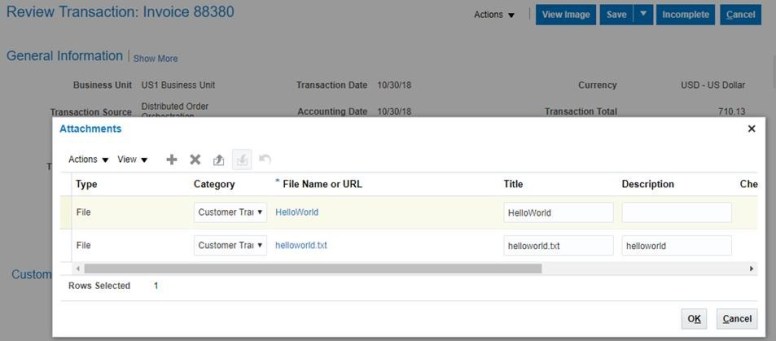
After import, we can see following file was attached to the AR Invoice
AR_Attachment

How to get a BU id

Using following SQL can get the BU id by BU name


SELECT hao.organization_id as bu_id,haot.name,hao.business_group_id
FROM
HR_ALL_ORGANIZATION_UNITS_F hao,HR_ORGANIZATION_UNITS_F_TL haot
WHERE
hao.ORGANIZATION_ID = haot.ORGANIZATION_ID
AND hao.EFFECTIVE_START_DATE = haot.EFFECTIVE_START_DATE
AND hao.EFFECTIVE_END_DATE = haot.EFFECTIVE_END_DATE
AND TRUNC(SYSDATE) BETWEEN hao.EFFECTIVE_START_DATE
AND hao.EFFECTIVE_END_DATEAND haot.LANGUAGE='US'
AND haot.name like '&BU_NAME%'

Integrate with Groovy and Camel

Groovy is an easy language for its simplicity and the strong support from Java.

And Camel is a popular integration framework that works perfectly for small to medium projects.

However, setting up Camel, especially in Java is a little complex, especially when you just need to do a Demo

This leads us to think of the option of using Groovy to work with Camel, and provide some simple solution.

Following is an example of how basic Camel framework can be set up in Groovy with only 20 lines – well, I did remove empty lines to make it look small 😉

And thanks to Groovy’s Grape dependency handling, it automatically grabs all the dependency packages for us — enables you to focus on the core transformation

Following code prints out a “Hello World!” string every 3 seconds

@Grab('org.apache.camel:camel-core:2.10.0')
@Grab('org.slf4j:slf4j-simple:1.6.6')
import org.apache.camel.*
import org.apache.camel.impl.*
import org.apache.camel.builder.*
def camelContext = new DefaultCamelContext()
camelContext.addRoutes(new RouteBuilder(){
def void configure(){
from("timer://jdkTimer?period=3000")
.to("log://camelLogger?level=INFO")
.process(new Processor(){
def void process(Exchange exchange){
println("Hello World!")
}
})
}
})
camelContext.start()
addShutdownHook{ camelContext.stop() }
synchronized(this){ this.wait() }

Groovy – get file from sftp

Following code shows how to use Groovy to download a file from sftp.

It uses package “com.jcraft”

Thanks to Groovy Grab, we don’t need to manually fetch the library ourselves.


@Grab(group='com.jcraft', module='jsch', version='0.1.46')
import com.jcraft.jsch.*

java.util.Properties config = new java.util.Properties()
config.put "StrictHostKeyChecking", "no"

JSch ssh = new JSch()
Session sess = ssh.getSession "USERNAME", "HOST", PORT

sess.with{
setConfig config
setPassword "PASSWORD"
connect()
Channel chan = openChannel "sftp"
chan.connect()

ChannelSftp sftp = (ChannelSftp) chan;
sftp.get("/DOWNLOADFOLDER/DOWNLOADFILENAME","c:/LOCALFOLDER/LOCALFILENAME")
sftp.rm("/DOWNLOADFOLDER/DOWNLOADFILENAME")
chan.disconnect()
disconnect()
}

Using Groovy to do xslt transformation

Following demo code shows how we can use Groovy and xslt templates to do a simple file transform.

To transform a file, we need to do following before we can get the final result:

  1. Get a source file, here we use a simple xml as a source
  2. Define a .xls file – xslt transformation file
  3. Use Groovy to link the process and create output

Following is the code of the Groovy script that calls:

import javax.xml.transform.TransformerFactory
import javax.xml.transform.stream.StreamResult
import javax.xml.transform.stream.StreamSource

// Load xslt
def xslt = new File("c:/test/product2.xsl").getText()

// create transformer
def transformer = TransformerFactory.newInstance().newTransformer(new StreamSource(new StringReader(xslt)))

// Load xml
def xml = new File("c:/test/product.xml").getText()

// Set output file
def output = new FileOutputStream("c:/test/product_output.xml")

// perform transformation
transformer.transform(new StreamSource(new StringReader(xml)), new StreamResult(output))

Following is the .xsl file defined:

<?xml version="1.0" encoding="UTF-8"?>
<xsl:stylesheet
   version="1.0"
   xmlns:xsl="http://www.w3.org/1999/XSL/Transform">
	<xsl:output method="xml" encoding="UTF-8" indent="yes"/>
	<xsl:template match="/">
		<xsl:for-each select="//products/product[not(.=preceding::*)]">
	<li>
				<xsl:value-of select="."/></li>
</xsl:for-each>
	</xsl:template>
</xsl:stylesheet>

Following is the source .xml file:


<items>
  <item>
    <products>
      <product>laptop</product>
      <product>charger</product>
    </products>
  </item>
  <item>
    <products>
      <product>laptop</product>
      <product>headphones</product>
    </products>
  </item>
</items>

After running the groovy code, you got the result as following – not a correct format xml, but it’s what the transformation file requested:

<ul>
	<li>laptop</li>
	<li>charger</li>
	<li>headphones</li>
</ul>