Oracle WMS PO Receive

Oracle EBS WMS provides a powerful receiving and putaway engine to help customers to solve complex putaway scenarios.

Following test shows how to do a PO standard receive using WMS RF
– It shows how to setup a putaway rule to direct the receiving putaway

Following are the main steps

  1. Setup a putaway rule
  2. Assign the putaway rule for the specific Item in the Rules Workbench
  3. Create a PO with Standard receiving control
  4. Use WMS mobile to receive the PO and create LPN
  5. Check the Putaway tasks created for this LPN
  6. Use ‘Move Any LPN’ to trigger putaway the LPN
  7. Check the Location suggested by the system and make sure it’s expected

Detail Steps and screenshots are as following

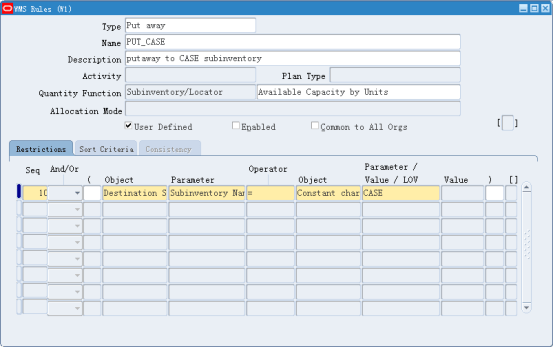
1. Setup Putawy Rule
This is a simple rule hard coded the putaway subinventory to ‘CASE’
In real time we can use the ‘Quantity Function’ and ‘Sort Criteria’ to setup complex Putaway rules.
2.In Rules Workbench, assign the rule to Item ZY100
We can setup multiple Putaway Rules and group by Putaway Strategy in real life case

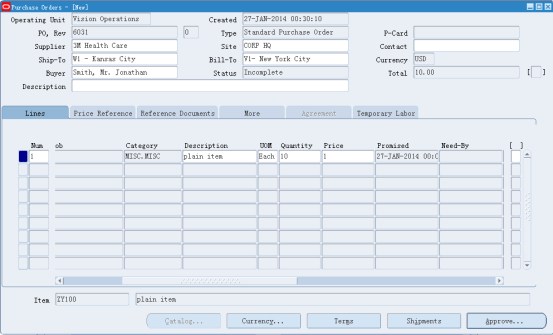
3.Create a PO with Standard Routing
4.Now we can use WMS Mobile to trigger a PO Receive
During receiving, we create an LPN ‘LPN109A’ for this receiving and input detail received SKU/Quantity, in this case it’s ZY100 with 10 quantity
In Live we will apply a pre-printed LPN Label to the pallet and scan as the LPN number or use portable printer to print out the Label real time.
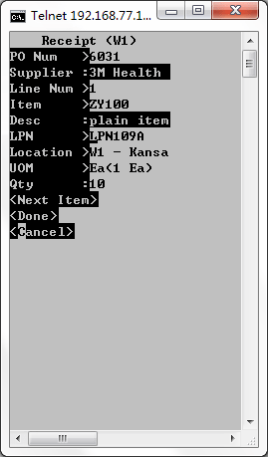
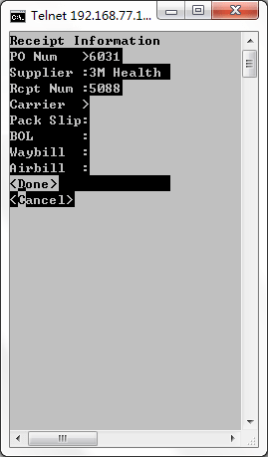
5. Check the Tasks workbench in EBS, it will create a Putaway Task
If we have enabled the Task setup, the worker who can accept the same Task Type can automatically accept this Task in Mobie and work on it.
In this test we can simply use ‘Move Any LPN’ with the LPN number to trigger the Putaway

6.Use ‘Move Any LPN’ function to trigger the Putaway
In this step, system will use the Putaway rule we have setup and get the 1st available Locator in the CASE subinventory
The system suggested subinventory is CASE, which means the Rule engine runned correctly.
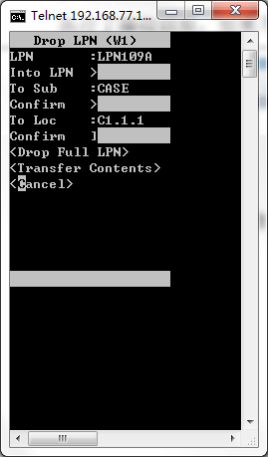
7. After putaway, the stock will reside in the same locator.

Omni channel SCM – SalesForce Order Transform

Overview

This is a demo of SalesForce Order Transform, it simply uses java multi-threading and activemq(in google engine cloud) to simulate an full transformation process including message inbound, transformation and outbound.

The same transformation can easily migrate to different integration platforms, etc Apache Camel, MuleSoft or Oracle Integration Cloud, or simply use the UI tool to do the same

A summarize diagram on the whole process

This is part of the omni-channel supply chain demo

Suppose we have 2 Sales Order platform, 1 is SalesForce and 1 is Shopify, we can transform different Orders to a standard format (etc, Oracle Cloud format), and then import to ERP.

In this Demo we only transformed SalesForce Order, it will be similar to Shopify Order except we uses REST API to pull down the Order

Following are the parts covered in the Demo

  1. Get Orders from SalesForce using web service (Proxy Client)
  2. Transform SalesForce order to standard sales order format using xslt template
  3. Export to a folder – we can change this to import to Oracle ERP Cloud

Test Result

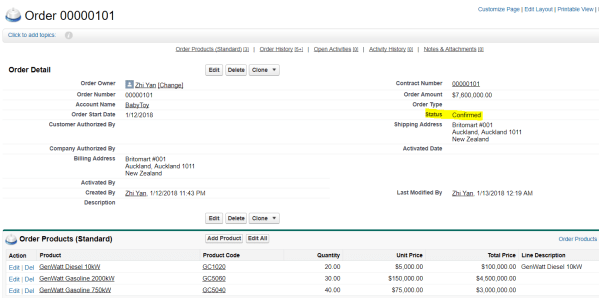
We create a new Order In SalesForce, and change its Status to ‘Confirmed’, since the program only pulls down orders that is ‘Confirmed’

After some time, the program automatically pull it down, transform it and put it to local folder

Detail of the project

Project Structure

We have 3 java classes implemented runnable interface

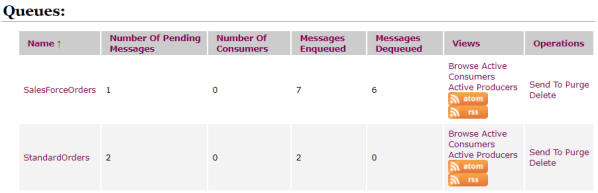
We use ActiveMQ for this project, 2 queues were created

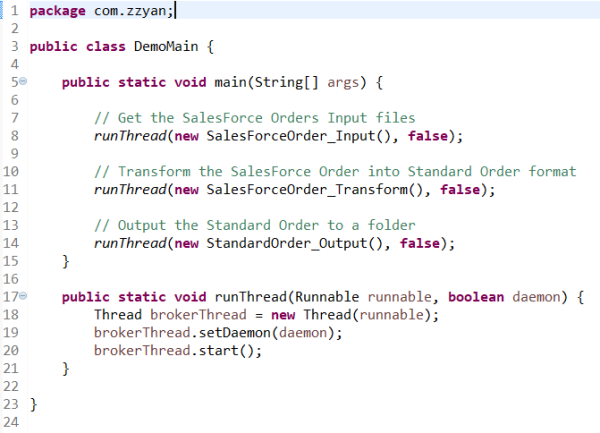
DemoMain.java

It starts 3 threads for the project

  1. SalesForceOrder_Input thread, it monitors the SalesForce system, pull down Orders with ‘Confirmed’ status and send to Queue “SalesForceOrders”
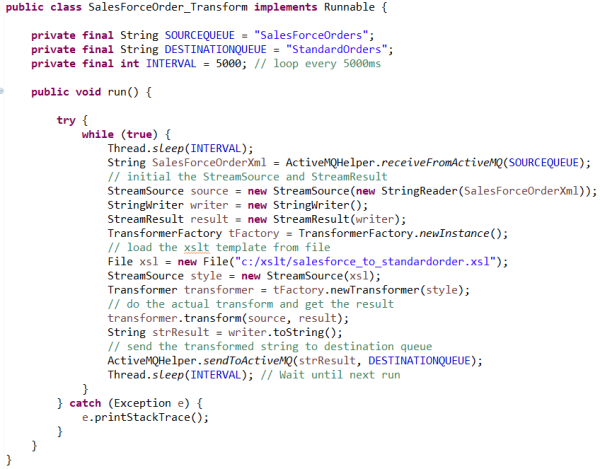
  2. SalesForceOrder_Transform thread, it fetch the files in Queue “SalesForceOrders”, uses xslt to transform the SalesForce Order to a standard sales order format, and send the output to Queue “StandardOrders”
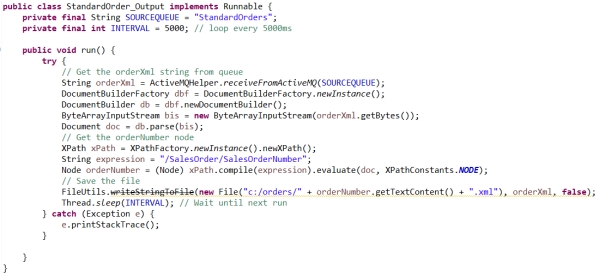
  3. StandardOrder_Output thread, it fetches the Order file from Queue “StandardOrders”, and create the Order file in the file system

SalesForceOrder_Input.java

It pulls down the Order and put it to queue “SalesForceOrders”

SalesForceOrder_Transform.java

This thread transforms the file using following xslt and files

Transform Detail

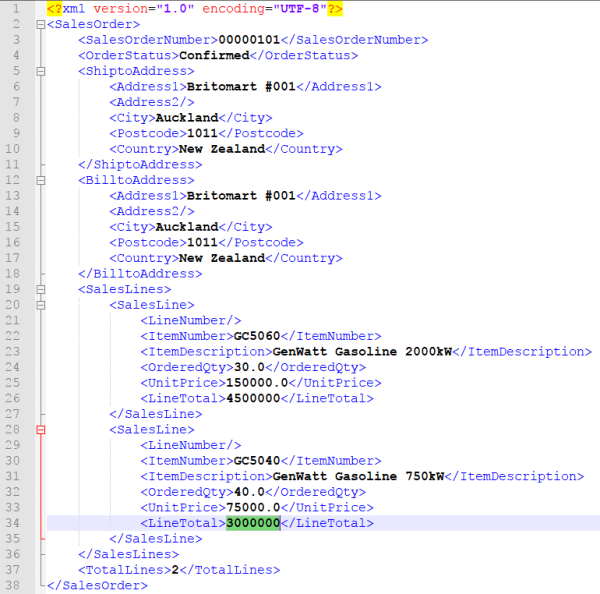
Following is the standard sales order format we want to convert to

We create a xslt template based on the standard sales order format

Inside the xslt template, we do followings

  1. We defined a variable ‘LinesCount’, and used xpath to calculate the total lines after transform, note we ignored Item ‘GC1020’
  2. We defined a loop to loop each Item, but ignored ‘GC1020’, suppose it’s a price only SKU and we don’t want it in the order to warehouse
  3. We used a multiply function to calculate the LineTotal
  4. We output the ‘LinesCount’ variable

After transformation, we got following output, which is same as expectation

StandardOrder_Output.java

Fetch the transformed order from queue and save it to local system

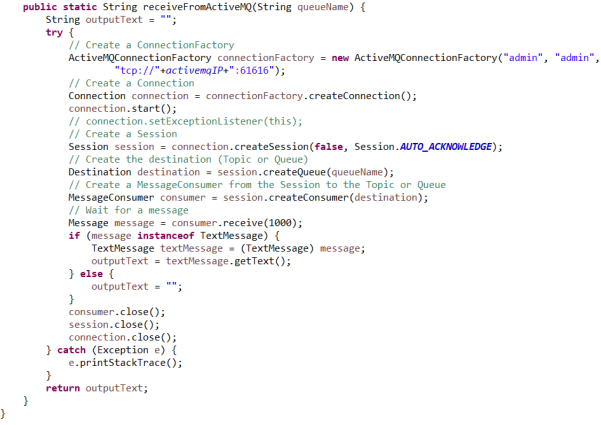
ActiveMQHelper.java

Help to send message and get message from ActiveMQ


Oracle WMS FIFO Picking

Oracle WMS contains a powerful rule engine, which enables the end users to create complex picking rules for their inventory.

Following test shows how to configure a FIFO picking rule for lot-controlled Item

Test Case 1 tests the FIFO picking rule

Test Case 2 tests the LIFO picking rule, to compare the different result of these 2 test cases

Following are the detail steps and screenshots

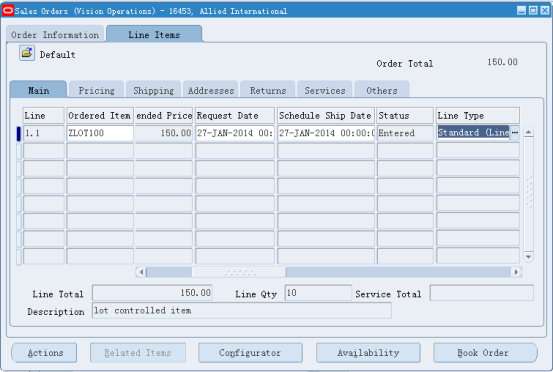
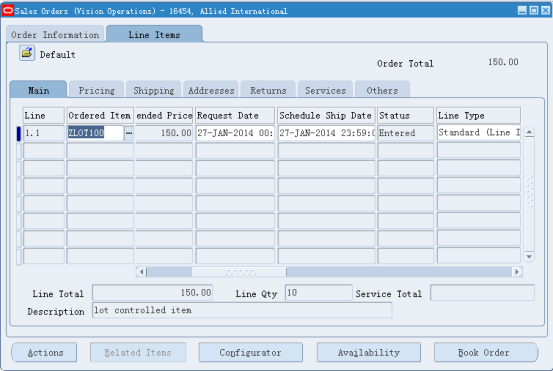
  1. Create a new lot controlled SKU ZLOT100 for the test
  2. Use WMS mobile to Misc Receive 2 lots into 2 LPN to the same location, each with 10 qty
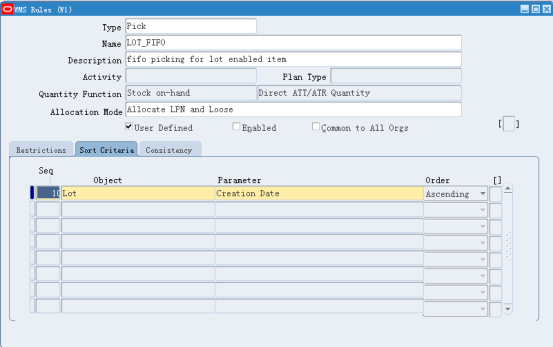
  3. Create a FIFO picking rule
  4. Configure the rule in the Rules Workbench
  5. Release the Sales Order and create the Picking Task
  6. Use ‘Accept Any Task’ to Accept the Task and check the system suggested picking LPN
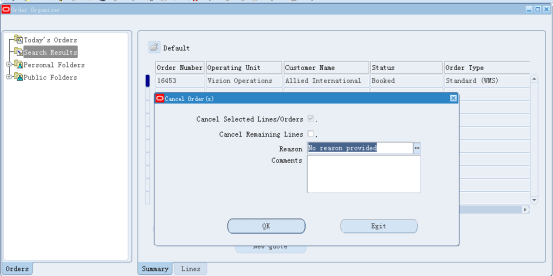
  7. Cancel the task when we get the suggested LPN for the 1st SO, also cancel SO to avoid confusion
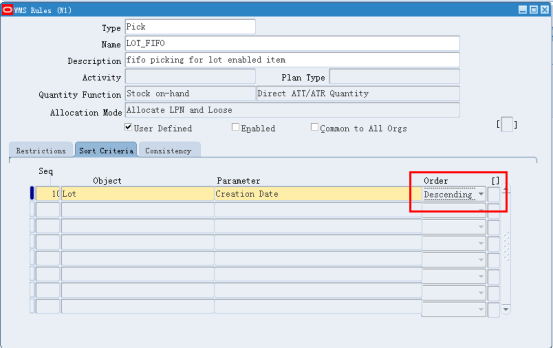
  8. Change the Picking rule to LIFO
  9. Create another same Order and release
  10. Accept the new task and see the suggested LPN

Detail Steps and screenshots are as following

  1. Create a new Item ZLOT100 with lot control
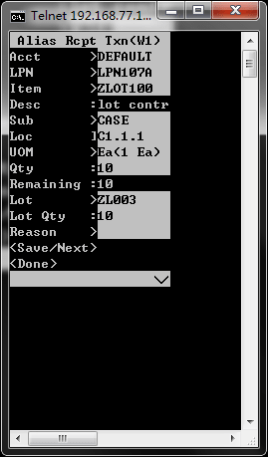
  2. Misc Receive 2 Lots, each with 10 quantity to 2 LPN
    LPN105A and LPN107A
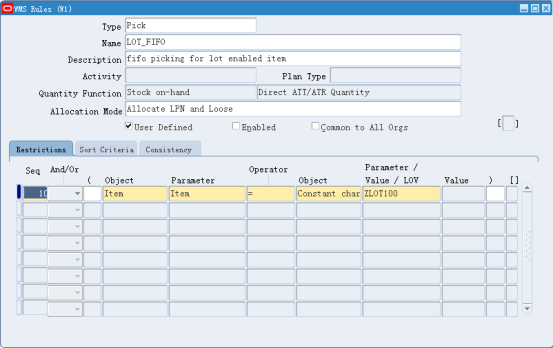
  3. Create a Picking Rule
  4. Following tab is the key, setup the ‘Sort Criteria’ using the Lot Creation Date
  5. In Rules Workbench, assign the new Picking Rule to the Item
  6. Create a Sales Order and release it
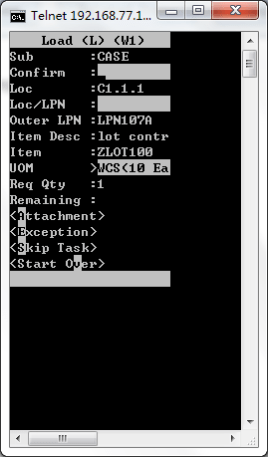
  7. Login as user ‘rbeezly’ and ‘Accept Any Task’
    In the Mobile page, system suggest to pick from LPN105A, this is in line with FIFO rule
  8. Now cancel the task and the SO, this will put the pending LPN back to stock
  9. Change the Same Picking Rule, change its sorting to ‘Descending’, this will make it a LIFO rule
  10. Create another same Sales Order and Release it
  11. Use the same User and ‘Accept any tasks’
    This time system suggest to pick from LPN107A instead of LPN105A, this is in line with LIFO and different from the FIFO test earlier

The Journey Begins

Thanks for joining me!

Good company in a journey makes the way seem shorter. — Izaak Walton

post